

Quick answer
To convert kilograms to pounds in Excel, multiply the kilograms by 2.20462 or use the CONVERT function: =CONVERT(A2,"kg","lbm"). To go from pounds to kilograms, divide by 2.20462 or use =CONVERT(A2,"lbm","kg"). CONVERT works in all current versions of Excel and returns #N/A when a unit code is wrong.
Recipes, shipping labels and supplier sheets rarely use the same unit. One lists kilograms, the next one pounds, and someone has to make them match.
Excel can do that conversion for you in a single cell. You can use a simple formula, the CONVERT function or a ready-made unit converter.
In this Ninja Excel guide you’ll see all three methods, going from pounds to kilograms and back, with the exact formulas and the result in each case.
What you’ll learn in this article
- How to convert with a simple formula
the conversion factor and the math behind it, step by step. - How the CONVERT function works
its syntax, the unit codes for kilograms and pounds, and two worked examples. - How to use a unit converter template
pick the category, pick the units and type the value. - How to fix the #N/A error
the two checks that solve it and how to hide it with IFERROR.
By the end of this article: you’ll convert any weight between kilograms and pounds in Excel and know which method fits each case.
Reading time: 6 minutes | Level: basic | For: anyone who tracks weights in Excel, like inventory or shipping
How do you convert kg to lbs in Excel?
There are three ways to do it:
- With a simple formula that multiplies or divides by the conversion factor.
- With the CONVERT function, which already knows the factor.
- With a unit converter template, where you only choose units from a list.
Let’s look at each one.
Method 1: Convert units with a formula
This method uses the conversion factor and basic math. First we’ll go from pounds to kilograms, then from kilograms to pounds.
From pounds to kilograms
You want to know how many kilograms 5 pounds of potatoes weigh. The fact you need is: 1 kilogram equals 2.20462 pounds.
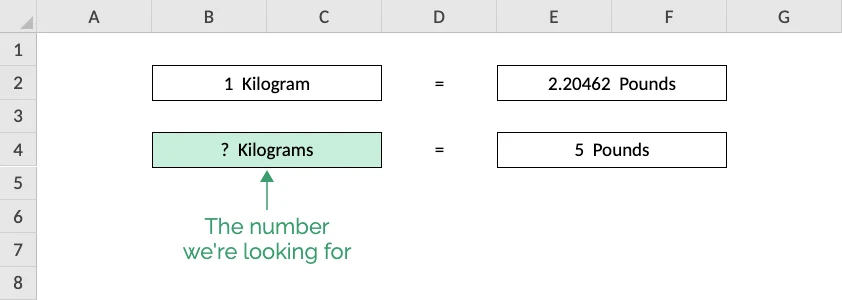
To get the kilograms, divide the pounds by 2.20462. In this sheet that means multiplying 1 by 5 and dividing the result by 2.20462.
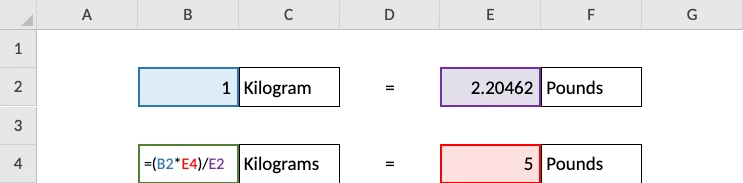
The formula is:

=(B2*E4)/E2
Result:
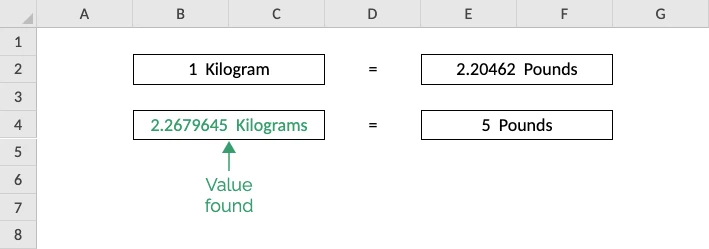
5 pounds of potatoes equal about 2.27 kilograms.
From kilograms to pounds
Now you want to know how many pounds 2 kilograms of potatoes weigh. The fact you need is: 1 pound equals 0.453592 kilograms.
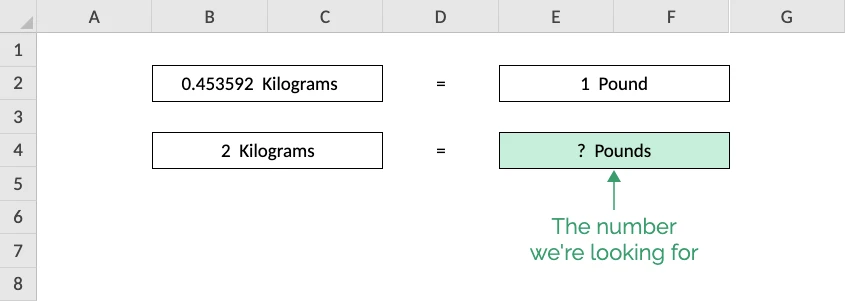
Multiply 2 by 1 and divide the result by 0.453592.
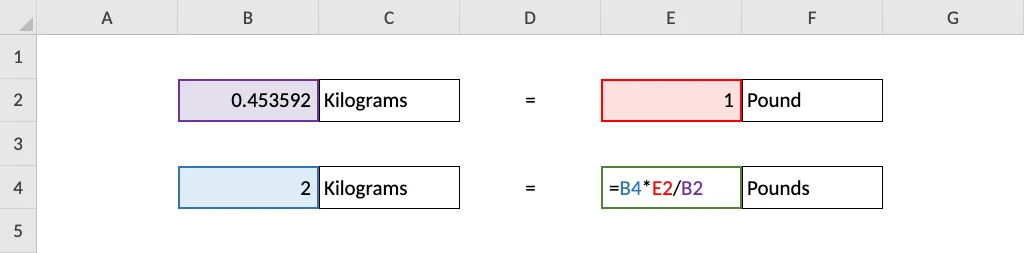
The formula is:
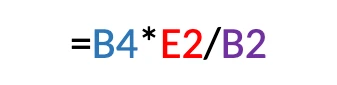
=B4*E2/B2
Result:
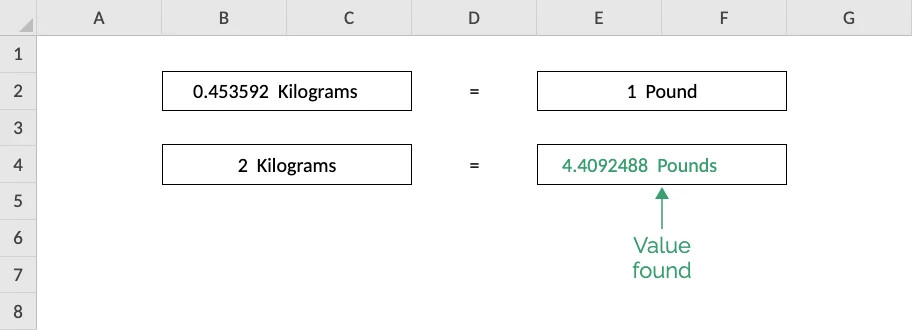
2 kilograms of potatoes equal about 4.41 pounds.
Ninja Summary
- 1 kilogram equals 2.20462 pounds.
- To go from pounds to kilograms, divide by 2.20462.
- To go from kilograms to pounds, multiply by 2.20462 or divide by 0.453592.
Method 2: Convert units with the CONVERT function
CONVERT changes a number from one unit of measure to another. It already knows the conversion factor, so you don’t have to type it.
- What it does: converts a value from one unit to another.
- Syntax:
=CONVERT(number, from_unit, to_unit) - number: the value you want to convert.
- from_unit: the unit the number is in.
- to_unit: the unit you want to get.
The unit code for kilograms is “kg”. For pounds it’s “lbm” (pound mass).
Ninja Tip
The units go in quotes because they’re text. They’re also case-sensitive: “kg” works, but “KG” returns an error.
From pounds to kilograms
You want to know how many kilograms 20 pounds of tomatoes weigh.
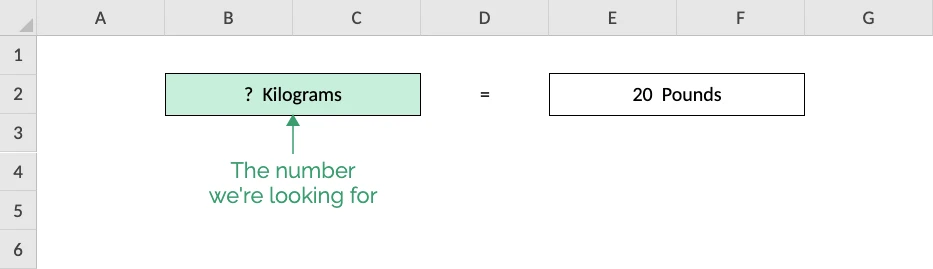
You’re going from “lbm” to “kg”, and the number is in cell E2.

The arguments are:
- number: E2
- from_unit: “lbm”
- to_unit: “kg”
So the function is:

=CONVERT(E2,"lbm","kg")
Result:
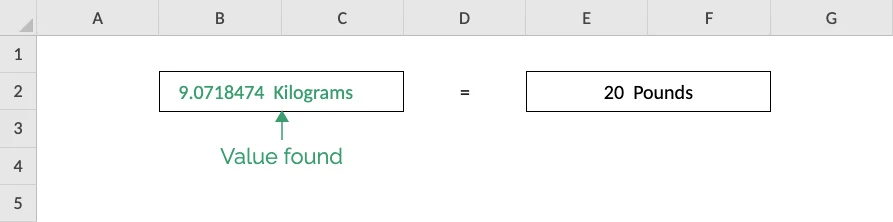
20 pounds equal about 9.07 kilograms of tomatoes.
From kilograms to pounds
Now you want to know how many pounds 10 kilograms of tomatoes weigh.
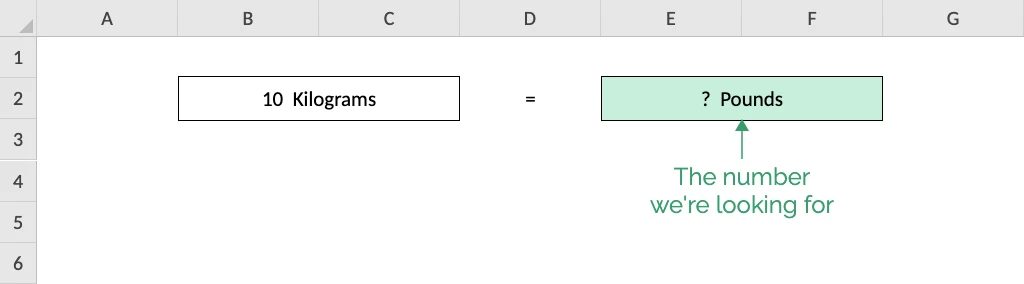
You’re going from “kg” to “lbm”, and the number is in cell B2.

The arguments are:
- number: B2
- from_unit: “kg”
- to_unit: “lbm”
So the function is:

=CONVERT(B2,"kg","lbm")
Result:
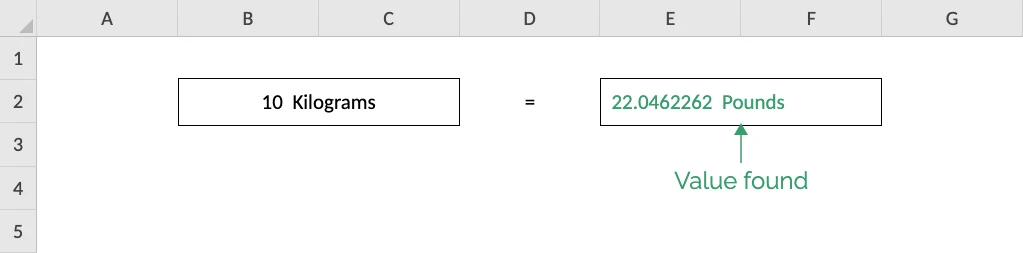
10 kilograms equal about 22.05 pounds of tomatoes.
Ninja Summary
- CONVERT takes three arguments: the number, the unit it’s in and the unit you want.
- Kilograms are “kg” and pounds are “lbm”, always in quotes.
- You don’t need to remember any conversion factor.
Method 3: Convert units with a unit converter template
A unit converter template gives you lists to pick from, so nobody has to remember codes or factors.
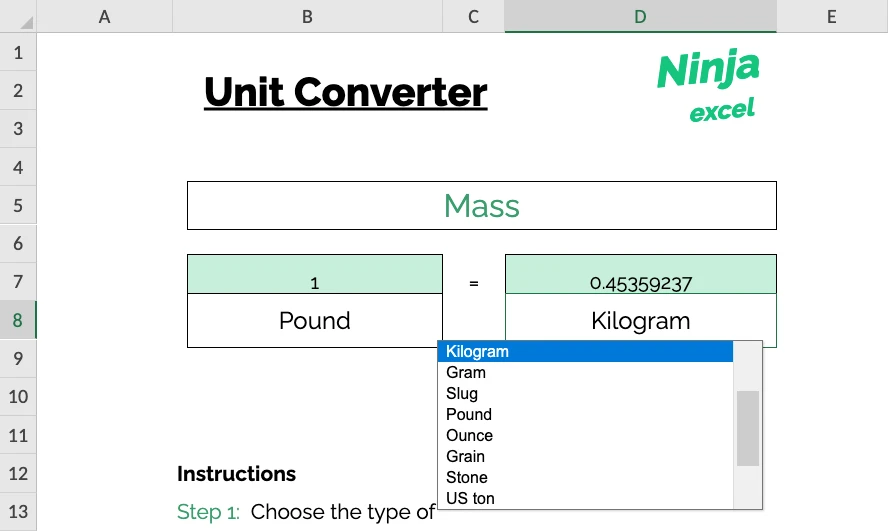
First, pick the “Mass” category from the list of unit types.
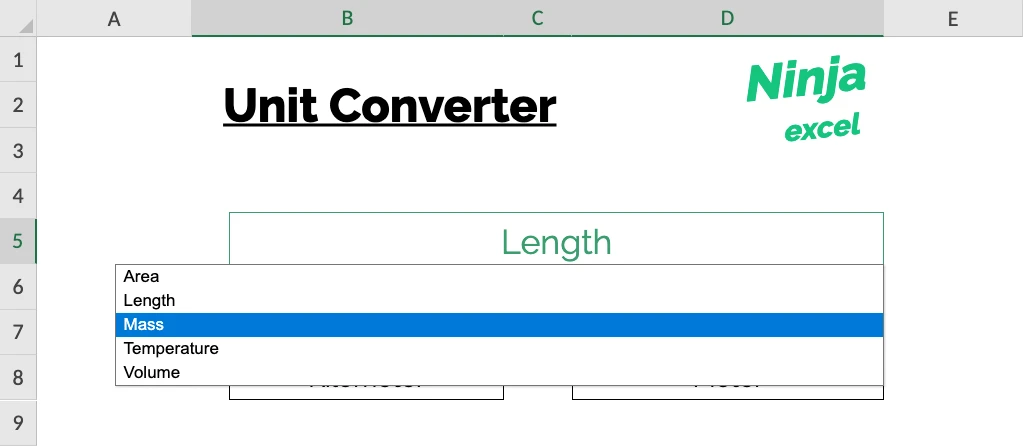
Once you pick “Mass”, the lists in cells B8 and D8 only show mass units.
From pounds to kilograms
You want to know how many kilograms 7 pounds of apples weigh. Pick “Pound” in cell B8 and “Kilogram” in cell D8.
Then type 7 in cell B7.
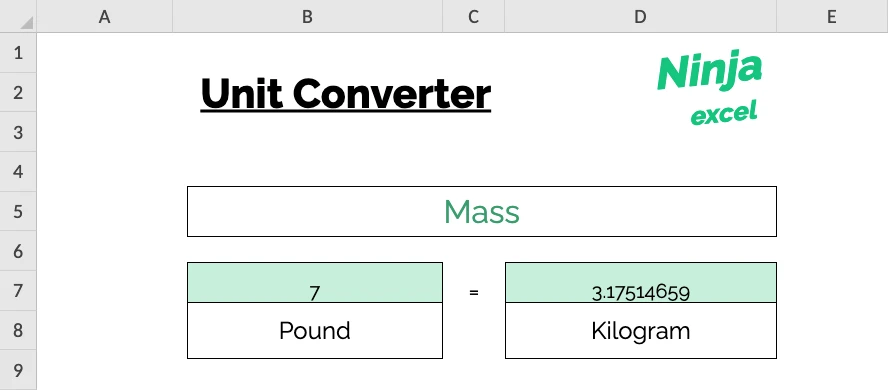
7 pounds equal about 3.18 kilograms of apples.
From kilograms to pounds
Now you want to know how many pounds 15 kilograms of apples weigh. Swap the units: “Kilogram” in B8 and “Pound” in D8, then type 15.
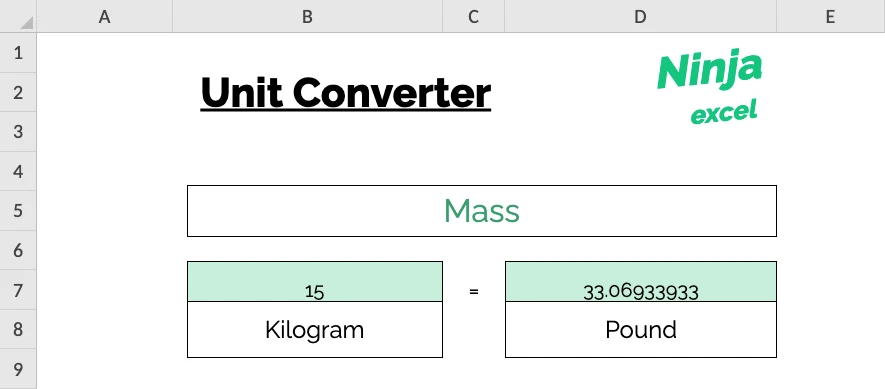
15 kilograms equal about 33.07 pounds of apples.
Ninja Summary
- Pick the category first, then the units.
- Change the units in B8 and D8 to switch the direction.
- It’s the easiest option for people who don’t write formulas.
Common errors when converting units
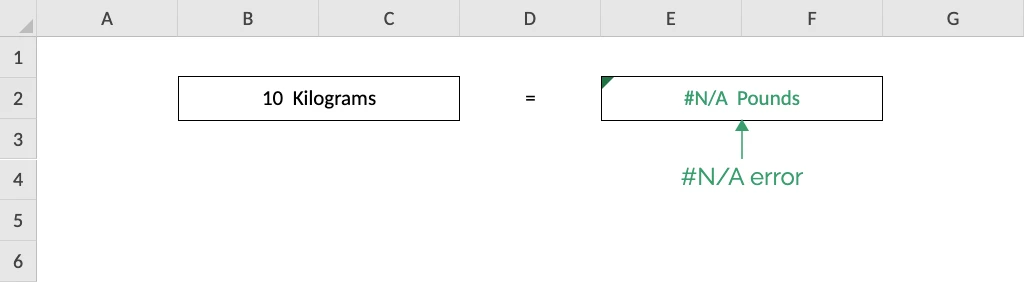
#N/A
CONVERT returns #N/A when one of its units is wrong. Check two things:
- That both from_unit and to_unit have a valid unit code, spelled exactly right.
- That both units belong to the same category. You can’t convert mass into length.
Ninja Tip
Wrap the function in IFERROR to show a clear message instead of the error: =IFERROR(CONVERT(B2,"kg","lbm"),"Check the units")
Conclusion
For a one-off conversion, a simple formula is enough. If you convert weights often, CONVERT saves you from typing factors and reduces mistakes. And if other people use the file, a converter template keeps it simple for everyone.
Take the next step with Excel courses
CONVERT is one of many functions that save time every week. Ninja Excel courses cover every level, with hands-on exercises inside Excel.
Still converting units by hand?
Functions like CONVERT stick when you practice them. In Ninja Excel courses you solve exercises inside Excel, with live classes and progress reports for team leads.
You start with a skills assessment, so you don’t repeat what you already know.
FAQ
What’s the formula to convert kg to lbs in Excel?
Multiply by the conversion factor, =A2*2.20462, or use =CONVERT(A2,"kg","lbm"). Both give the same result.
How do I convert lbs to kg in Excel?
Divide by 2.20462, =A2/2.20462, or use =CONVERT(A2,"lbm","kg").
Why does CONVERT use “lbm” instead of “lb”?
“lbm” means pound mass, the pound used for weight. “lb” isn’t a valid code, so it returns #N/A. There’s also “lbf”, which is pound force.
How do I round the result to two decimals?
Wrap the function in ROUND: =ROUND(CONVERT(A2,"kg","lbm"),2).
Can I convert a whole column at once?
Yes. Write the formula in the first row and double-click the fill handle in the bottom-right corner of the cell. Excel copies it down to the last row with data.
Why does CONVERT return #N/A?
Usually because a unit code is misspelled, uses the wrong case (“KG” instead of “kg”) or the two units belong to different categories.