
Excel training for Healthcare industry teams
Standardize how spreadsheets are built, reviewed, and used across your organization. Build practical Excel skills by working directly inside Microsoft Excel.














Why Excel skills matter in Healthcare
Consistency across Healthcare operations
In Healthcare organizations, Excel is used to support billing, staffing coordination, inventory management, and financial reporting. These spreadsheets often sit between clinical systems and financial outputs.
When Excel usage varies across roles or departments, files become inconsistent and reconciliation effort increases.
Key impacts of Excel training
-
Standardized Excel structures across teams.
Ensure administrative, operational, and financial staff apply the same calculation logic and file structures when working with spreadsheets. -
Revenue cycle and administrative processes.
Enable consistent tracking of claims, payments, and adjustments by reducing variation in how Excel files are prepared and reviewed. -
Operations and facility management.
Align how staffing data, activity logs, and inventory records are maintained across departments and locations. -
Data preparation for reporting.
Reduce time spent correcting and validating Excel files before they are used for internal reviews or consolidated reporting.

What makes Ninja Excel different
for healthcare teams
Ninja Excel delivers hands-on Excel training built around direct execution and skill verification. The platform is designed to help organizations establish a consistent and measurable level of Excel proficiency across teams that work with spreadsheets on a daily basis.
-
Practice directly inside Excel.
Training is completed in a live Microsoft Excel environment. Users solve exercises by building formulas, applying functions, and validating results directly inside the spreadsheet, using the same actions they perform in their daily Excel files. -
Structured certification paths.
Excel skills are organized into defined certification levels. Each level specifies the set of functions and concepts users are expected to master, creating a shared technical reference point across teams and roles. -
Instructor support during execution.
Microsoft Certified Trainers are available via live chat to assist users while they work through exercises. Support focuses on resolving specific Excel questions that arise during task execution. -
Progress and certification reporting for managers.
Administrators receive progress reports that summarize participant activity and certification advancement, allowing them to monitor skill development across teams over time.
How Excel training supports Healthcare teams
Within Healthcare organizations, Excel files are used to connect claim activity, appointment volumes, staffing levels, inventory usage, and financial reporting. Training helps teams use consistent structure and calculation logic when preparing spreadsheets for reimbursement tracking, scheduling analysis, cost reporting, and audit documentation.

Revenue Cycle Management (RCM)
RCM teams use Excel to follow claims from submission through payment. Spreadsheets are used to track claim status, identify repeated denial reasons, reconcile payments and adjustments, and summarize expected versus received reimbursement by payer.

Patient Access & Scheduling
Patient access teams use Excel to track scheduled appointments, completed visits, cancellations, and no-shows. These files are used to review appointment volumes by day or service, identify unused capacity, and support scheduling adjustments that affect downstream billing and operations.

Care Delivery Operations
Operational teams use Excel to review staffing coverage and service activity across units or locations. Spreadsheets consolidate hours worked, coverage levels, and activity counts, supporting short-term staffing adjustments and operational planning.

Supply Chain & Materials Management
Supply chain teams rely on Excel to monitor medical supply inventory, usage volumes, and purchase costs. Files are used to track stock levels, compare planned versus actual consumption, and coordinate replenishment decisions with operational needs.

Finance & Decision Support
Finance and decision support teams use Excel to consolidate operational inputs with financial data. Spreadsheets support service line cost analysis, budget-to-actual comparisons, and the preparation of files reviewed during monthly financial close processes.

Compliance, Quality & Regulatory Reporting
Compliance and quality teams use Excel to maintain control files and supporting documentation. These spreadsheets are reviewed during internal audits and regulatory reviews to validate reported figures related to operations, billing, and financial performance.
How Excel usage differs across Healthcare contexts
In Healthcare organizations, Excel files are frequently used as supporting files alongside clinical, operational, and financial systems. The following examples illustrate how Excel files are typically built before training, and how their structure changes after teams complete targeted Excel training aligned with their day-to-day needs.
Use case 1
Hospital systems
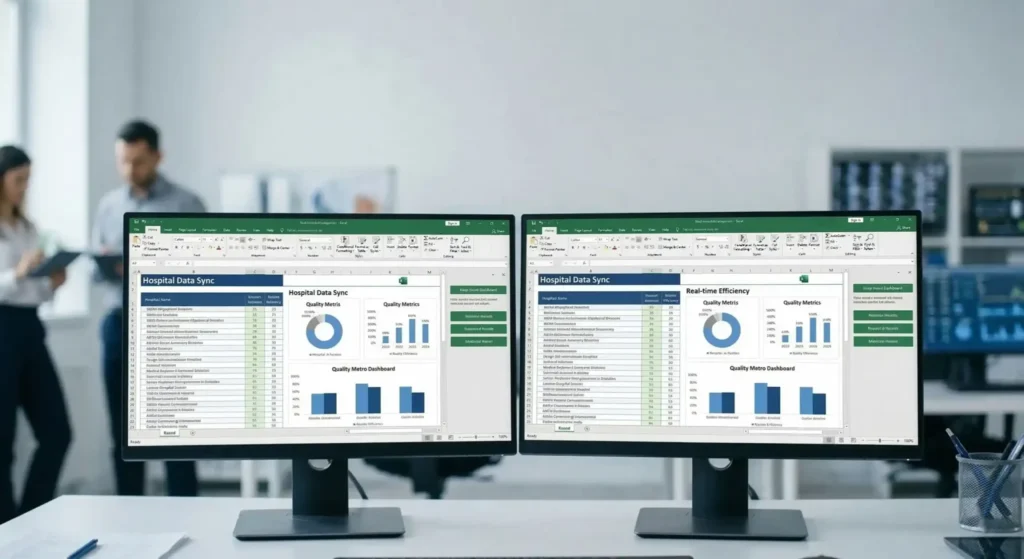
Before: Excel files are used to support claim tracking, staffing summaries, and activity reporting across departments. These files are often created independently, with locally defined formulas, references, and layouts. Reconciling figures across departments usually requires manual review of calculations and assumptions.
After: Teams build Excel files using a common structure. Data inputs are separated from calculations, reference data is stored in dedicated tables, and formulas follow the same structure across workbooks. Reviewers can follow how figures are calculated using consistent formulas and reference tables across files.
Use case 2
Outpatient clinics and ambulatory care
Before: Excel files are used to list scheduled appointments, completed visits, cancellations, and no-shows. Data is recorded manually and organized differently depending on the person maintaining the file, which limits comparability over time.
After: Appointment files follow a defined structure. Dates, services, and visit outcomes are recorded using standardized fields such as dropdown lists and consistent date formats. Summaries are generated from the same underlying data, allowing historical comparisons without manual reformatting.

Use case 3
Payers and revenue cycle service organizations
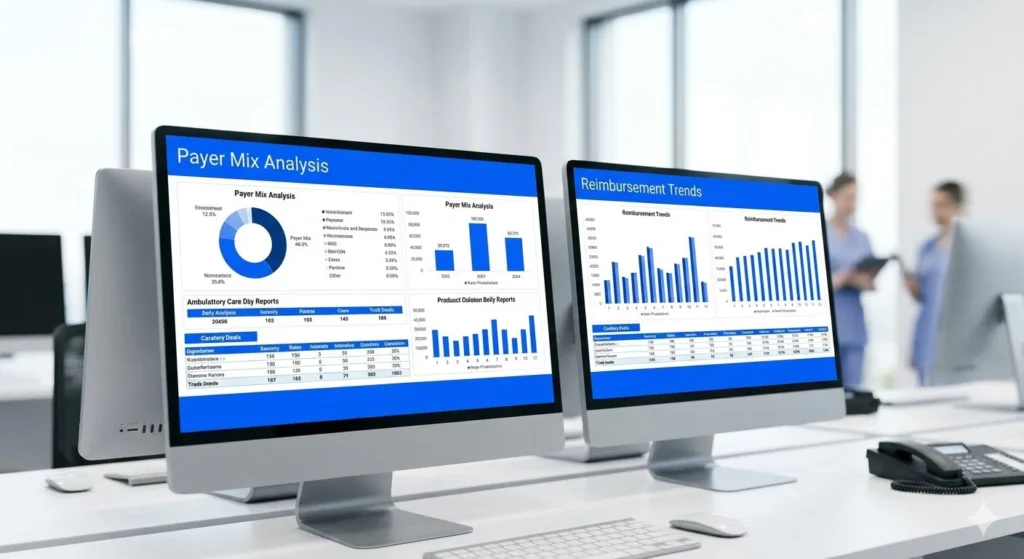
Before: Claims and reimbursement data from multiple sources is consolidated into Excel for review and reconciliation. Reference values and adjustment rules, such as write-offs or differences between billed and paid amounts, are frequently embedded directly in formulas, making it difficult to trace how totals are calculated.
After: Reference data is stored in dedicated tables and accessed through lookup functions. Calculation logic is separated from raw data, making it easier to review how figures are derived and to update reference values without modifying formulas.
Use case 4
Pharmaceutical and medical device organizations
Before: Excel files are used to track product identifiers, quantities, and operational metrics related to regulated products. Files are maintained by different teams, often with variations in structure and reference data.
After: Product identifiers and reference fields are standardized across files. Calculations reference shared lookup tables instead of fixed values, allowing reviewers to understand how quantities and totals are derived across documents.

Why generic LMS platforms fall short for Excel training
| Aspect | Ninja Excel | Generic LMS / Traditional Training |
|---|---|---|
| Learning environment | Integrated Microsoft Excel environment where users practice directly inside a spreadsheet. | Instruction delivered through videos or guided walkthroughs, where users observe Excel actions rather than performing them directly. |
| Skill validation | Exercises must be completed inside Excel, with feedback indicating whether the result is incorrect, partially correct, or correct. | Knowledge checks based on quizzes or confirmation that instructional content was viewed. |
| Technical support | Direct access to Microsoft Certified Trainers via live chat while working on exercises. | Support provided through documentation or follow-up assistance after the exercise is completed. |
| Content focus | Exercises focused on formulas, references, and file structures used in everyday Excel work. | Examples used to demonstrate Excel features in isolation. |
| Training flow | Short lessons designed to be completed in brief sessions during the workday. | Lessons organized into predefined modules that are typically completed in a single sitting. |
| Certification & reporting | Performance-based certifications earned through execution, with progress and results reported to administrators. | Certificates granted after completing assigned content. |
Build consistent Excel skills
across your Healthcare teams
Reduce variation in how spreadsheets are built and reviewed across roles and departments. Move beyond ad-hoc Excel files with a training approach focused on execution, skill validation, and measurable progress.
Frequently asked questions
about Excel training
Users work inside Microsoft Excel embedded in the platform. Exercises are completed directly in a spreadsheet environment, where users enter formulas, reference cells, and validate results as they would in their own Excel files.
Each user starts with a diagnostic assessment designed to identify their current level of Excel proficiency. The results determine the appropriate starting point within the certification structure, ensuring users begin at a level that matches their existing skills.
All exercises use Excel workbooks provided by Ninja Excel. These files are created specifically for training purposes and include predefined structures, datasets, and validation rules. Users do not work with their company’s spreadsheets during training.
No. Training is completed entirely using Excel files supplied by Ninja Excel. Organizations are not required to upload internal spreadsheets, financial data, or operational information.
Yes. Users are assigned to certification levels based on their diagnostic results. This allows teams with varying levels of Excel proficiency to progress through the training at an appropriate pace, without forcing all users into the same starting point.
The certification path is divided into defined levels that build progressively. Users complete one level at a time, advancing only after demonstrating proficiency in the required Excel skills for that level.
Managers receive structured progress reports that show user participation, current certification level, completion status, and advancement over time. These reports provide visibility into certification progress and skill coverage across teams.
Time commitment varies depending on the user’s level and availability. Lessons are short and designed to be completed individually, allowing users to progress without scheduling extended training sessions.