

Quick answer
A workbook in Excel is the file you open and save. It can hold one or several worksheets, each one a grid of rows and columns where you enter, organize and calculate data. The current format is .xlsx, which supports more rows, more columns and more functions than the older .xls format. A single sheet in a modern workbook can hold up to 1,048,576 rows and 16,384 columns.
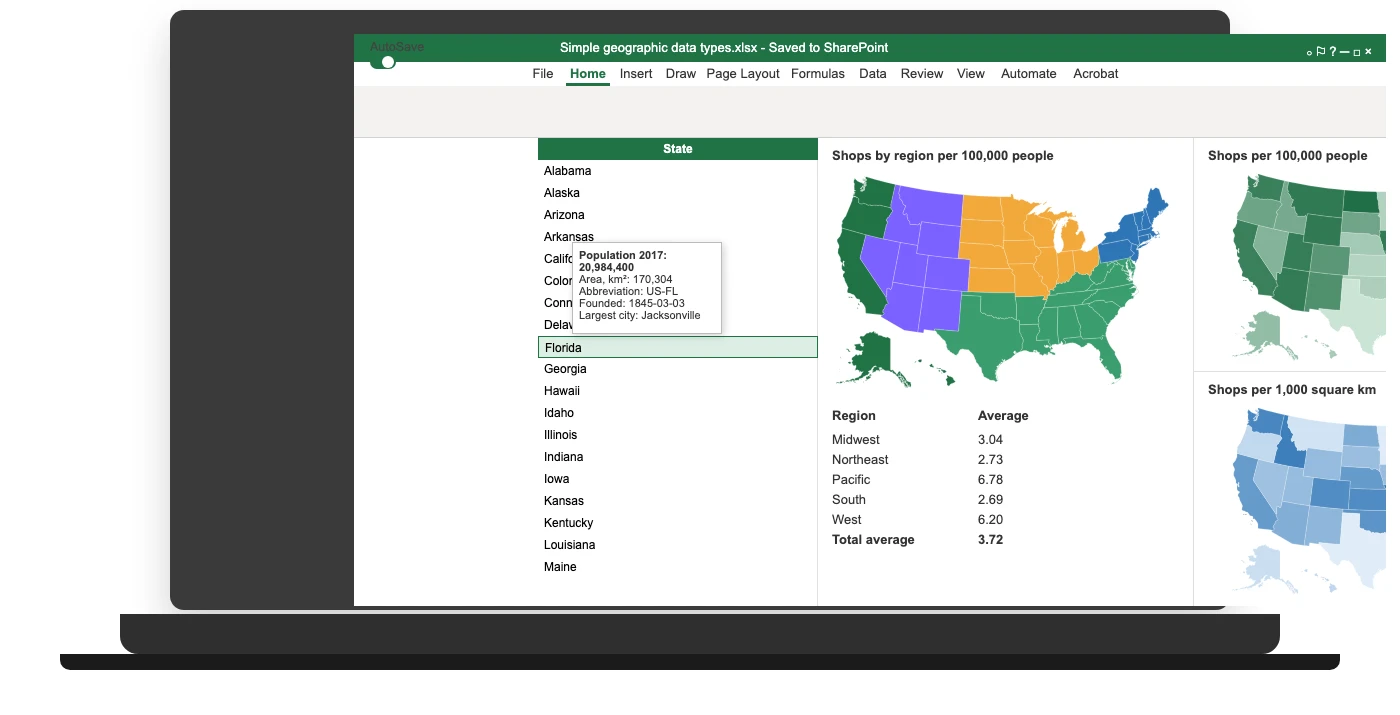
A workbook is more than a file on your computer. It’s the structure that lets you organize, calculate and present data clearly.
From the file name to how you lay out your sheets, every choice affects how fast you work day to day. A workbook that’s well named and well organized makes audits, reviews and status meetings much easier.
Knowing the technical limits and the tools available also helps you avoid common mistakes and make decisions based on data you can trust.
This guide covers what a workbook is, how it’s built, and how to create and manage one. You’ll also get practical tips for keeping files well structured, compatible across versions and easy for any team to use.
What you’ll learn in this article
- What a workbook is and what it contains
the difference between a workbook and a worksheet, and how sheets, cells, rows and columns fit together. - XLS vs. XLSX: which format to use
the real differences in capacity and features, and why .xlsx should be your default. - How to create, save and manage a workbook
step by step, from a blank workbook to naming and saving it so your team can find it later. - The technical limits of a worksheet
how many rows, columns and characters per cell Excel actually supports, and what changes in the old .xls format. - Version compatibility
what happens when you open an old file in a new version of Excel, and how to convert it safely.
By the end of this article: you’ll know how a workbook is built, which format to use and how to keep your files organized and compatible across teams.
Reading time: 9 minutes | Level: beginner | For: anyone starting out with Excel, and teams that want to keep files organized
What is a workbook in Excel?
A workbook in Excel is a file that contains one or more worksheets. Each worksheet lets you enter, organize and analyze data in a grid of rows and columns.
This structure lets you separate information by department, date, project or category. A single workbook can include sheets for a budget tracker, a time log and a report of the main indicators, all in one place.
When you open a workbook, each sheet shows up as a tab at the bottom of the window. You can add, delete or rename sheets as the file needs it.
File formats: XLS vs. XLSX
Excel uses a few different file formats. The most common are:
- XLS: the format used before 2007. It has a smaller capacity and fewer features.
- XLSX: the current format. It improves security, supports far more data and performs better.
Ninja Tip
Stick with .xlsx as your default format. It gives you better compatibility, more stability and access to the advanced functions that aren’t available in the old .xls format.
Ninja Summary
- A workbook is the file. A worksheet is one of the pages inside it.
- .xlsx is the current format and should be your default choice.
- .xls still works, but with fewer rows, fewer columns and fewer features.
Parts of an Excel workbook
Worksheets
Worksheets are the pages that make up a workbook. Each one lets you record different data inside the same file. When you open a new workbook, Excel creates a default sheet named “Sheet1.”
You can add new sheets with the “+” button or the shortcut Shift + F11. To keep things organized, rename each sheet with a clear label like “SalesReport” or “Q1_Metrics.” You can also delete a sheet by right-clicking it and choosing “Delete,” though that action can’t be undone.
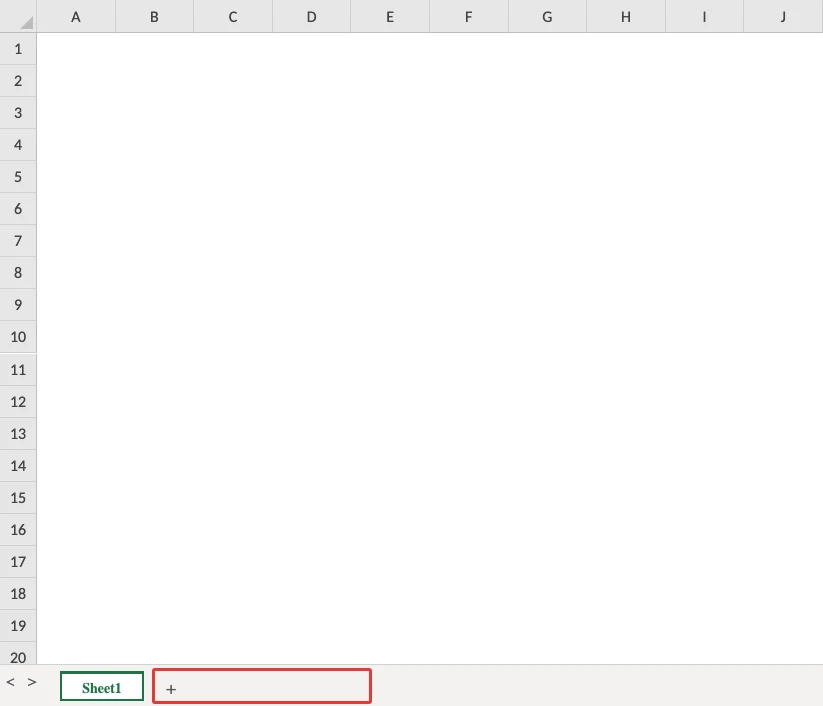
Organizing your sheets well lets you separate processes, departments or dates inside a single workbook, which makes it much easier to review and update later.
Cells, rows and columns
Cells are the basic units where you enter data. Each cell has a unique reference, like A1, that combines its column and row.
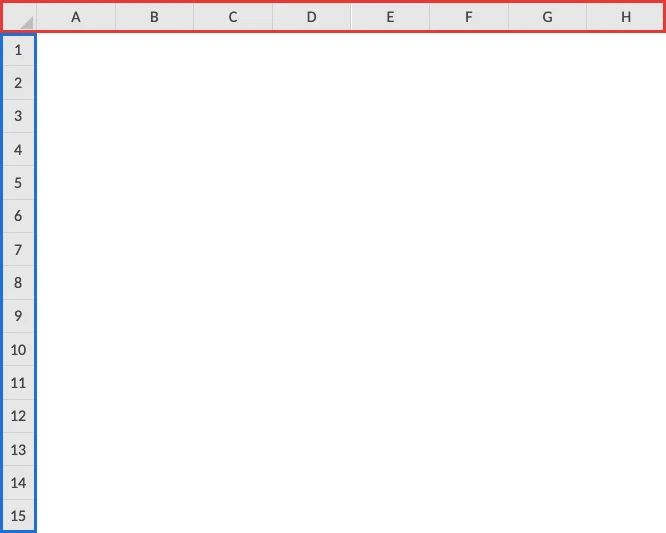
Columns are labeled with letters (A, B, C…) and rows with numbers (1, 2, 3…). This structure lets you point to any piece of data in the sheet with total precision.
Avoid mixing data types in the same column. Keep separate fields for numbers, dates and text, so formulas and sorting behave the way you expect.
The Excel interface
When you open a workbook, you’ll see a few key elements:
- Title bar: shows the name of the active file.
- Formula bar: lets you view and edit the content of the selected cell.
- Quick Access Toolbar: includes shortcuts like save, undo and redo.
- Ribbon: groups commands into tabs such as “Home,” “Insert” or “Data.”
Ninja Summary
- A workbook holds worksheets. Each worksheet holds cells arranged in rows and columns.
- A cell reference like A1 always points to one exact spot.
- Keep one data type per column so formulas and sorting work as expected.
Creating and managing Excel workbooks
Create a new workbook
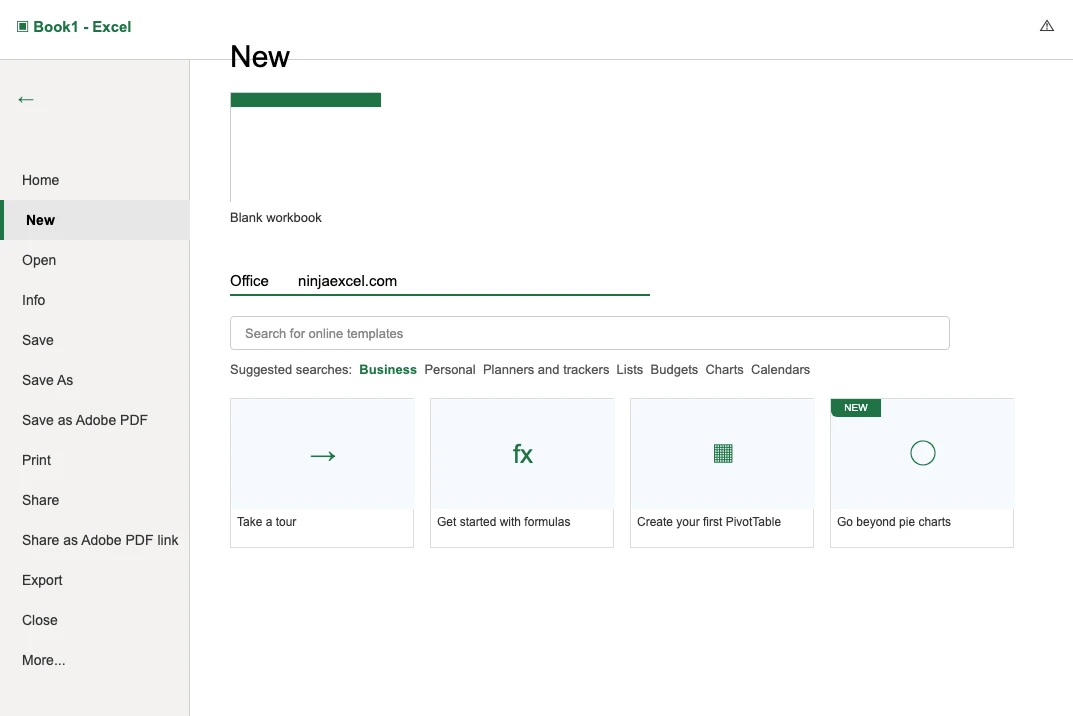
To start a new file from scratch, choose “Blank workbook” from the Excel start screen. You can also go to File → New → Blank workbook.
This creates an empty file with one starting sheet and a placeholder name like “Book1.xlsx.” It isn’t saved yet and has no location on your computer.
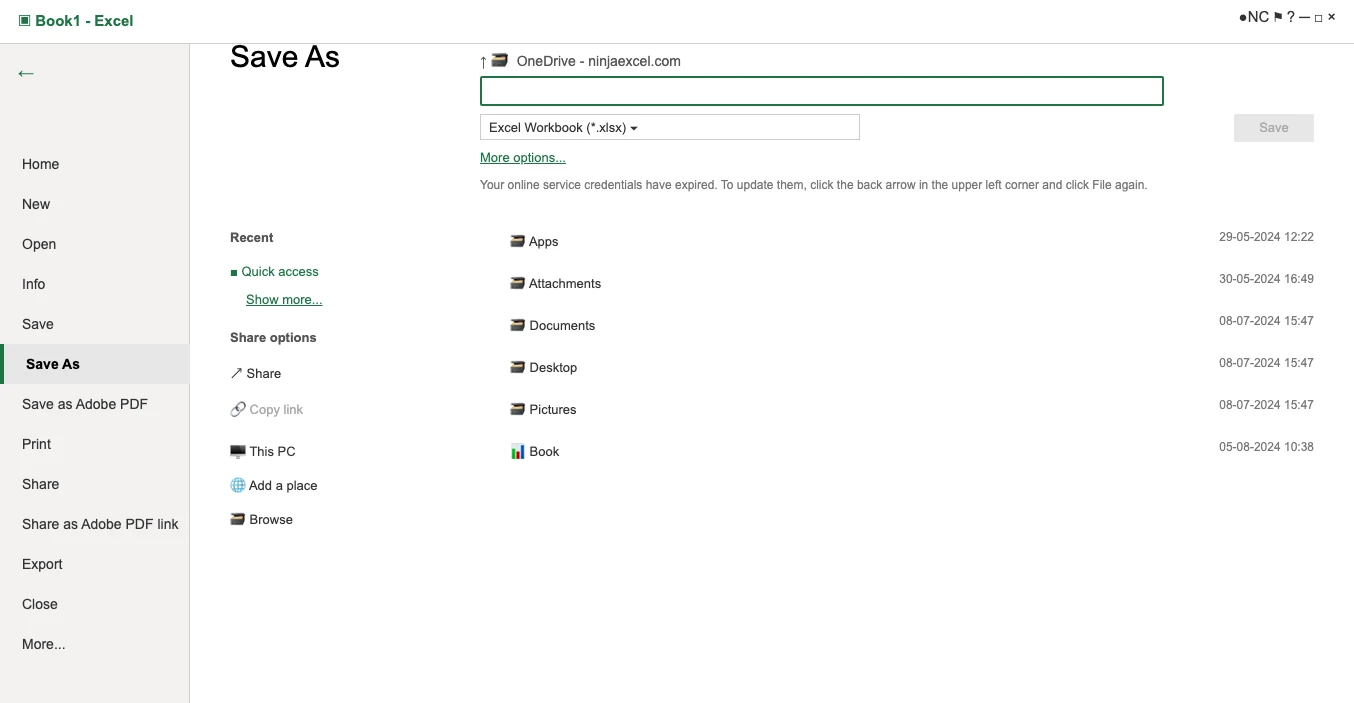
Save and name workbooks
The first time you save, go to File → Save As, pick a folder and type a clear name for the file. Use the .xlsx format to keep compatibility and access to current features.
Avoid generic names like “Book2” or “Data.” A descriptive name like “April_sales_report.xlsx” is always better.
To save changes quickly, use the save icon or press Ctrl + S. That keeps you from losing work in progress.
Open and close workbooks
To open an existing file, go to File → Open and pick the document from your recent files or from your computer.
To close a workbook, go to File → Close or click the “X” on the file window. If the workbook has unsaved changes, Excel will warn you so you don’t lose any information.
Ninja Summary
- A blank workbook starts unsaved, with a placeholder name like “Book1.xlsx.”
- Name files clearly and save with Ctrl + S as you work.
- Excel warns you before closing a workbook with unsaved changes.
Technical specifications of an Excel worksheet
Worksheets have defined limits that matter when you work with large data sets.
In .xlsx files, each worksheet supports:
- Up to 1,048,576 rows
- Up to 16,384 columns (from A to XFD)
- More than 17 billion cells per sheet
- Up to 32,767 characters per cell, though the cell view only displays up to 1,024 of them
These limits let you work with large volumes of information without splitting your data across several files.
The older .xls format, by comparison, only allows:
- 65,536 rows
- 256 columns
That format locks out many current features and raises the risk of losing information if you go past its limits.
Beyond file size, your computer’s capacity matters too. If the file is heavy and your machine has little memory available, Excel can slow down or show errors.
To move around a large worksheet, use the scroll bar or the view buttons to adjust your workspace. You can also use the zoom slider to zoom in or out.
Ninja Summary
- A modern worksheet supports up to 1,048,576 rows and 16,384 columns.
- The old .xls format caps out at 65,536 rows and 256 columns.
- Your computer’s own memory can slow Excel down even within these limits.
Version compatibility
Excel has changed a lot over time, and not every version handles the same formats or the same features.
When you open an old .xls file in a recent version like Excel 365, the program switches to compatibility mode. You can still view and edit the file, but some modern features stay turned off.
To avoid these limits, convert the file to the current .xlsx format. Go to File → Save As and choose “Excel Workbook (.xlsx).”
Before converting, keep a copy of the original file. Converting can affect certain formulas or advanced formatting that aren’t supported anymore.
Ninja Tip
If you need to send a file to someone using an older version of Excel, check whether they need the .xls format first. If they do, save a second copy in that format, and try to cut back on advanced functions that version won’t support.
Conclusion
Understanding what a workbook is helps you work with more clarity, order and control over your data. From creating a file to managing sheets, names and formats, every choice affects how efficiently that file runs.
Good habits from the start make it easier for teams to collaborate, cut down on errors and keep information up to date.
Take the next step with your own files
If you use Excel for reports, analysis or planning, understanding how a workbook is built and what its basic features do is the foundation for taking on more complex tasks with confidence.
Still naming your files “Book2”?
Good habits with workbooks save time, but they stick when you practice them. Ninja Excel courses put you inside real exercises with live classes, and if your company is covering the training, your team lead can see your progress in real time.
You start with a skill check, so you never repeat what you already know.
FAQ
Here are some common questions about what a workbook in Excel is.
What is a workbook in Excel and what is it used for?
It’s a file that contains worksheets. You use it to organize, analyze and present information in a structured way.
What’s the difference between a worksheet and a workbook?
The workbook is the whole file. Worksheets are the individual pages inside it where you work with data.
How do you create a workbook in Excel?
From the start screen, choose “Blank workbook.” You can also go to File → New → Blank workbook.
What’s the file extension for an Excel workbook?
The current extension is .xlsx. There’s also the older .xls format, which has a smaller capacity and fewer features.
What does an Excel workbook contain?
It includes one or more worksheets. Each sheet has cells organized into rows and columns where you enter data.