


Quick answer
A work plan in Excel is a spreadsheet that lays out goals, tasks, owners, deadlines and resources for a project. It replaces scattered emails and meetings with one shared file: a table with columns for activities, owners, start and end dates, duration and status, plus a timeline or Gantt view that shows what is done, what is in progress and where today sits on the calendar.
A work plan is a document that organizes goals, activities, deadlines and owners so a team can reach a defined result. Building it in Excel gives you a flexible file that makes it easier to coordinate projects, team tasks or personal goals.
A well-built work plan brings clear priorities, better use of resources and full visibility into progress. That is why so many companies use one to align effort and make sure every activity has an owner and a real deadline.
In this article you will see:
- What a work plan is and what it is used for.
- Its main components.
- How to build one step by step in Excel.
- A free template you can copy and adapt to your own project.
What you’ll learn in this article
- What a work plan is and what it’s for
the goals it serves and why it works better than a loose to-do list. - The seven components every work plan needs
goals, activities, timeline, owners, resources, indicators and risks, each with an applied example. - How to build one step by step in Excel
from defining goals to reviewing and adjusting the plan as the project moves forward. - The five most common mistakes
vague goals, missing owners and outdated timelines, with how to fix each one. - A free, ready-to-use template
a simplified example you can copy into your own sheet and adapt right away.
By the end of this article: you will be able to build a work plan in Excel from scratch, assign owners and deadlines with confidence, and track progress without losing track of any task.
Reading time: 10 minutes | Level: beginner | For: project leads, HR teams and anyone coordinating a project in Excel
What is a work plan?
A work plan is a document that organizes, in a structured way, the activities needed to reach a goal. Companies, schools and individuals all use one, because it forces you to define clear goals, owners, resources and deadlines instead of leaving them implicit.
Unlike a loose to-do list, a work plan sets a route that makes it easier to coordinate people and departments. It covers not just what will get done, but who will do it, when and with what resources.
In Excel, a work plan becomes a practical tool because it lets you centralize everything in one sheet. You can update tasks, calculate timelines and see progress without paying for separate project management software.
In short, a work plan in Excel works like a map: it orders goals, activities and resources, and it cuts down on guesswork while you manage the project.
Ninja Summary
- Organizes goals, activities, owners, resources and deadlines.
- Makes coordination between teams and departments easier.
- In Excel, it centralizes information and speeds up tracking.
What is a work plan in Excel used for?
A work plan in Excel turns goals into concrete actions. It does more than list tasks: it organizes what will get done, who will do it and by when. By centralizing that information in one sheet, teams stop depending on scattered emails or constant check-in meetings.
Companies use Excel to track projects and training programs. An HR team, for example, can track start dates, progress and owners for each course. If someone falls behind, the plan should make the bottleneck visible right away.
It is just as useful in operations and finance. A project lead can schedule critical activities and calculate assigned resources. If a task is going over budget, they can reallocate costs before the final phase instead of after.
At an individual level, a work plan in Excel helps structure personal goals or coursework. The sheet is flexible enough to adjust as conditions change, without moving to a more complex or paid system.
Ninja Summary
- Organizes goals and tasks with clear owners and deadlines.
- Lets HR and team leads spot delays or bottlenecks early.
- Makes it easier to adjust resources and budgets mid-project.
- Works for company projects and personal goals alike.
What are the components of a work plan?
A work plan brings together elements that organize tasks, assign responsibility and measure results. Here they are, with applied examples:
| Component | Description | Applied example |
|---|---|---|
| Goals | Define what you want to achieve. General goals give direction, specific goals let you measure results. | “Train 100% of the sales team to an intermediate Excel level before December.” |
| Activities and tasks | Break each goal into clear, actionable steps. | Pick a provider, enroll participants, schedule dates, track progress. |
| Timeline | Sets start and end dates for each activity. | Enrollment: September 1 to 5; start: September 10; close: December 15. |
| Owners | Assigns someone to each task to keep accountability and control. | HR handles enrollment, the sales lead signs off on participants, the provider teaches the course. |
| Resources | Identify the budget, time and support the plan needs. | A $3,000 budget, 24 hours of training time per participant, IT support. |
| Completion indicators | Let you measure progress and check the plan is on track. | Attendance above 90%, percent complete, minimum average score of 80%. |
| Risks and limitations | Anticipates obstacles so you can plan a response. | Risk: absences due to workload. Response: schedule asynchronous sessions. |
Ninja Summary
- Clear goals guide the plan.
- Activities break goals into steps.
- The timeline keeps deadlines on track.
- Owners keep tasks accountable.
- Resources prevent surprises.
- Indicators measure results.
- Risks help you react ahead of time.

How to make a work plan in Excel, step by step
Building a work plan in Excel means organizing information progressively until you have a usable, measurable document. These are the key steps:
- Define the goals.
Every plan should start with a clear purpose. General goals set the direction, specific goals let you evaluate the result.- Example: “Train 100% of the sales team to an intermediate Excel level before December.”
- List activities and tasks.
Each goal should break down into concrete actions. This breakdown makes it easier to assign responsibility and avoid ambiguity.- Example: pick a provider, enroll participants, schedule dates, track progress and run a final evaluation.
- Assign owners.
A task with no owner tends to stay unfinished. Assign one person per action, by name and role.- Example: HR handles enrollment, the sales lead approves participants, the provider teaches the course.
- Set a timeline.
The timeline defines start and end dates for each task. In Excel, you can show it with date columns or a table with a progress bar.- Example: “Enrollment: September 1 to 5; course start: September 10; close: December 15.”
- Add resources.
Every activity needs human, financial or technical resources. Identifying them in the sheet avoids surprises during execution.- Example: a $3,000 budget, 24 hours of training time per participant and IT support for platform access.
- Define completion indicators.
Indicators show whether you are on track. They can be percent complete, deadlines met or deliverable quality.- Example: percent of participants who finish the course, attendance above 90% and a minimum average score of 80%.
- Review and adjust the plan.
A work plan is not static. Reviewing it regularly lets you fix delays or reassign resources. Excel makes this easy because you can update the data in real time.- Example: if a group does not finish the course on time, you can extend the timeline or add asynchronous sessions.
Ninja Tip
Add a status column with just three options (Pending, In progress, Completed) and apply conditional formatting to color each one. A quick glance at the sheet then tells you where the project stands, without reading a single date.
Common mistakes when building a work plan in Excel
Excel is a flexible tool, but many work plans fail because they are not built with enough detail. Here are the most common mistakes and how to avoid them:
- Vague goals.
Goals like “improve productivity” are hard to measure.- How to avoid it: write specific goals with a deadline, such as “cut report preparation time by 15% before December.”
- Not breaking down tasks.
Listing only the goal without detailing actions creates confusion.- How to avoid it: split each goal into concrete activities, with owners and dates.
- Tasks with no owner.
A task with nobody assigned tends to stay unfinished or get duplicated.- How to avoid it: add a dedicated owner column to the sheet and check it before execution starts.
- An outdated timeline.
A rigid plan stops being useful if it does not reflect changes or delays.- How to avoid it: review the sheet regularly and adjust deadlines based on actual progress.
- No progress indicators.
Without metrics, you cannot evaluate results.- How to avoid it: define indicators from the start, such as percent complete, deadlines met or deliverable quality.
Example work plan in Excel (free template)
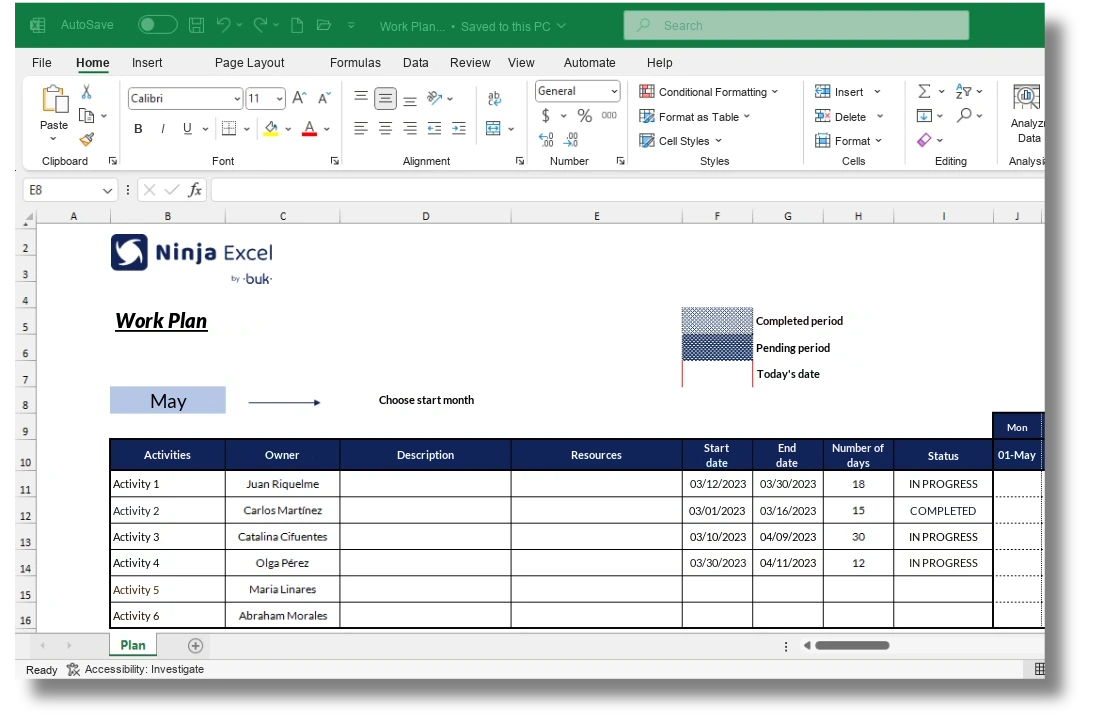
A work plan in Excel is organized into columns that bring together all the relevant project information. That way, a single sheet holds the goals, tasks, owners, dates and status of each activity.
The table below shows a simplified example of that structure:
| Goal | Task | Owner | Start date | End date | Status |
|---|---|---|---|---|---|
| Train team in intermediate Excel | Enroll participants | HR department | 09/01/2025 | 09/05/2025 | Pending |
| Optimize financial reports | Design new report format | Finance lead | 09/05/2025 | 09/20/2025 | In progress |
| Set up project tracking | Configure tracking sheet | Operations lead | 09/10/2025 | 09/30/2025 | Pending |
Conclusion and next step
A work plan in Excel lets you organize goals, tasks, owners and deadlines in a single, accessible tool. With the free template, you can start structuring your own projects right away.
Take the next step
Still building plans by copying cells one by one?
A solid work plan starts with Excel skills you actually practice. Ninja Excel’s online courses walk you through real exercises inside Excel, with live classes, so you can build and track a plan like this one on your own.
You start with a skill check, so you never repeat what you already know.
FAQ
Explore some of the most common questions about how to make a work plan in Excel.
What is the difference between a work plan and an action plan?
A work plan organizes the goals, tasks, owners and deadlines for a full project. An action plan focuses on the specific steps needed to reach a single goal. In practice, an action plan can be one part of a larger work plan.
Why use Excel to build a work plan?
Excel lets you centralize information in one sheet and customize it to your team’s needs. It is more flexible than a text document and cheaper than specialized software. It also makes it easy to update data in real time and share it across departments.
How detailed should a work plan be?
It should be specific enough that every owner understands what to do, when and with what resources. Too little detail and tasks get lost; too much and the plan becomes impractical. The goal is to balance detail with clarity.
How do you measure progress on a work plan in Excel?
You can measure it with indicators like percent of tasks completed, deadlines met or deliverable quality. A well-built sheet can calculate these indicators automatically with Excel functions like COUNTIF or SUMIFS.
Can you reuse the same work plan across different projects?
Yes, as long as the structure stays flexible. An Excel template can adapt to different contexts, from training programs to operations or finance projects. You only need to adjust the goals, resources and owners for each project.