


Quick answer
Excel for Mac uses ⌘ Command where Windows uses Ctrl for most everyday actions (copy, paste, bold, save), but several shortcuts switch to ⌃ Control instead, such as inserting or deleting a row. Function keys (F1 to F12) usually need fn first on a Mac keyboard. Learning the layout of your keyboard and these differences lets you work through a spreadsheet without ever touching the trackpad.
Keyboard shortcuts are ways to run a command (open a file, save your work, select cells) by pressing keys instead of clicking with the mouse. On a Mac they follow their own logic: some match Windows one for one, some swap Ctrl for Command, and a few swap to Control instead. Once you learn where the keys sit on a Mac keyboard, you can work through an entire spreadsheet without touching the trackpad. This guide covers the keys you need, the shortcuts worth memorizing first, and the exact ones that trip up people coming from Windows.
What you’ll learn in this article
- Where the modifier keys sit on a Mac keyboard
Shift, Control, Option, Command, Tab, fn and the F row, so you can follow every shortcut below. - The universal shortcuts that work in any app
copy, cut, paste, undo and redo, plus the one rule that lets you reuse most Windows shortcuts on a Mac. - Shortcuts for a whole workbook
open, save, save as, add a sheet and move between sheets, without clicking a single tab. - Shortcuts you’ll use inside a sheet, every day
formatting, filters, charts, tables, inserting or deleting rows and columns, and selecting cells fast. - How to pin your favorite tool to the Quick Access Toolbar
a full walkthrough, with screenshots, of adding Format Painter so it’s always one click away.
By the end of this article: you’ll know the Mac-specific shortcuts that differ from Windows, and you’ll have a Quick Access Toolbar set up the way you work.
Reading time: 11 minutes | Level: beginner | For: anyone who switched from a Windows PC to a Mac, or wants to stop reaching for the mouse
Before you start: find your way around a Mac keyboard
Before you use any shortcut, it helps to know exactly where each key is and what it’s called. A few keys on a Mac keyboard don’t exist on Windows, and some familiar ones sit somewhere else.
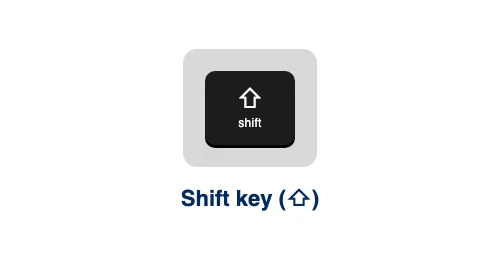
Shift, or the key with the up arrow.
This key sits twice on your keyboard, on the left and the right.
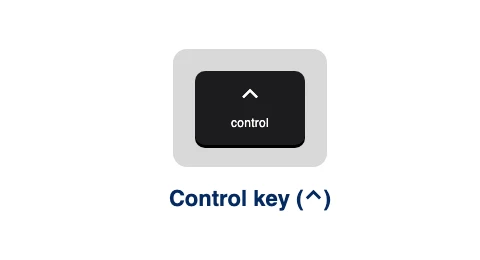
Control
It sits on the left of your keyboard, between fn and Option.
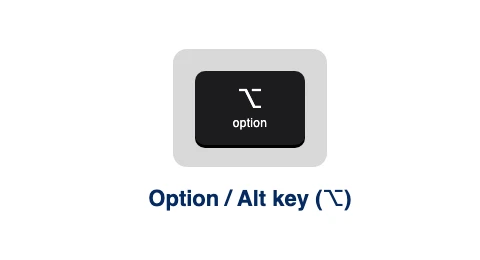
Option (also called Alt)
It appears twice on your keyboard. You’ll often see it labeled Option, or just by its symbol.
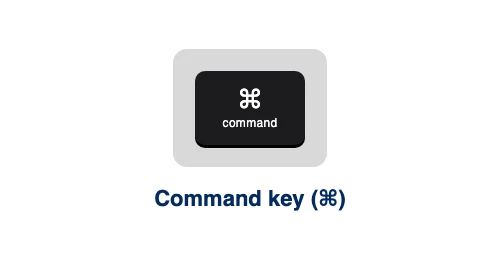
Command
This one is unique to Mac, and you’ll use it more than Control. In fact, most shortcuts that use Ctrl on Windows use Command on a Mac.
Tab, or the key with the arrow pointing right
You probably know this one for indenting text. Its other main job is jumping between objects on screen, which you’ll see further down.
Ninja Tip
You can switch between open apps with ⌘ Command + Tab. To flip between two Excel workbooks, which are windows of the same app, use ⌘ Command + ` (the grave accent key, just above Tab). It’s especially handy when you’re working across two workbooks at once.
Fn
This key gives you access to a second function printed on some keys, especially on a laptop keyboard where many keys do double duty. Some external keyboards don’t have it, and newer Mac keyboards may show a globe icon on the same key.
The F keys, the ones you never knew what to do with, until now
Ninja Tip
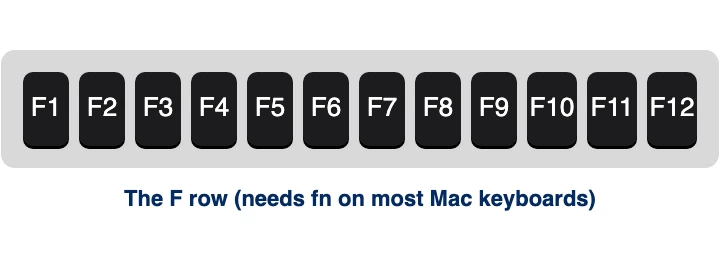
Some Macs have the F keys set to control volume, screen brightness or full-screen mode instead. That’s the default on most Mac laptops, so to use an F key as a shortcut you’ll usually need to hold fn at the same time.
Ninja Summary
- Most Windows
Ctrlshortcuts become⌘ Commandon a Mac, but not all of them. - On most Mac keyboards, the F1 to F12 row needs
fnheld down first. ⌘ Command + Tabswitches between apps, and⌘ Command + `switches between your open Excel workbooks.
What are the essential shortcuts on a Mac?
These shortcuts aren’t specific to Excel. They work the same way in almost any action you take on your computer:
| Action | Shortcut |
| Copy | ⌘ Command + C |
| Cut | ⌘ Command + X |
| Paste | ⌘ Command + V |
| Undo | ⌘ Command + Z |
| Redo | ⌘ Command + Shift + Z |
Ninja Tip
In Excel for Mac, many shortcuts that use Ctrl on Windows also work with the Control key, but not all of them, so it’s worth testing before you rely on one.
What shortcuts work on a whole Excel workbook?
These shortcuts apply to the entire file, not just one cell or sheet. You’ll find most of them in other Office apps too.
| Action | Shortcut |
|---|---|
| Open | ⌘ Command + O |
| Create a new workbook | ⌘ Command + N |
| Save | ⌘ Command + S |
| Save as | ⌘ Command + Shift + S or fn + F12 |
| Insert a new sheet | fn + Shift + F11 |
| Move between sheets | ⌥ Option + Left Arrow or Right Arrow |
Ninja Tip
F12 opens Save As on both Windows and Mac, but on most Mac keyboards you need to hold fn for it to work. If fn + F12 changes your volume instead, use ⌘ Command + Shift + S, which works on any Mac keyboard.
What shortcuts work inside a sheet?
This next set of shortcuts applies inside a single Excel sheet. You’ll use most of these over and over, in the same document.
| Action | Shortcut |
|---|---|
| Open the Format Cells dialog | ⌘ Command + 1 |
| Bold | ⌘ Command + B |
| Italic | ⌘ Command + I |
| Underline | ⌘ Command + U |
| Toggle a filter on or off | ⌘ Command + Shift + F |
| Insert a chart on a new chart sheet | fn + F11 |
| Insert a table | ⌘ Command + T |
| Fill the formula down | ⌘ Command + D |
| Fill the formula right | ⌘ Command + R |
| Find | ⌃ Control + F (⌘ Command + F jumps to the search box) |
| Replace | ⌃ Control + H |
| Edit the content of a cell | fn + F2 (or ⌃ Control + U) |
| Toggle an absolute reference ($) while editing a formula | ⌘ Command + T (or fn + F4) |
| Insert a row | Shift + Space, then ⌃ Control + Shift + "=" |
| Delete a row | Shift + Space, then ⌃ Control + "-" |
| Insert a cell | ⌃ Control + Shift + "=" |
| Delete a cell | ⌃ Control + "-" |
| Insert a column | ⌃ Control + Space, then ⌃ Control + Shift + "=" |
| Delete a column | ⌃ Control + Space, then ⌃ Control + "-" |
| Move through cells | Arrow keys |
| Extend the selection | Shift + Arrow |
| Extend the selection to the last nonblank cell in the row or column | ⌘ Command + Shift + Arrow |
| Select an entire column | ⌃ Control + Space |
| Select an entire row | Shift + Space |
| Accept a function from autocomplete | Down Arrow, then Tab |
| Select all cells | ⌘ Command + A |
Ninja Summary
- Inserting or deleting a row, column or cell uses
⌃ Control, not⌘ Command: that’s the mistake we see most often. Shift + Spaceselects a row and⌃ Control + Spaceselects a column, the opposite of what some lists show.- Save As is
⌘ Command + Shift + Son any Mac keyboard, andfn + F12works too.
How do I add a shortcut to the Quick Access Toolbar?
If there’s a tool you reach for constantly and want even closer at hand, you can pin it to the Quick Access Toolbar. It’s not a keyboard shortcut by itself, but it saves you the same kind of time by putting the button exactly where you can see it, instead of hunting for it on the ribbon.
The screenshots below come from Excel for Windows, where this window is called Excel Options. On a Mac, the same list lives under Excel > Settings (Preferences on older versions) > Ribbon & Toolbar, on the Quick Access Toolbar tab, and the steps work the same way.
Step 1: Open the settings window. Staying true to this article, use the keyboard: on a Mac, press ⌘ Command + "," and choose “Ribbon & Toolbar”; on Windows, go to “File,” then “Options.”
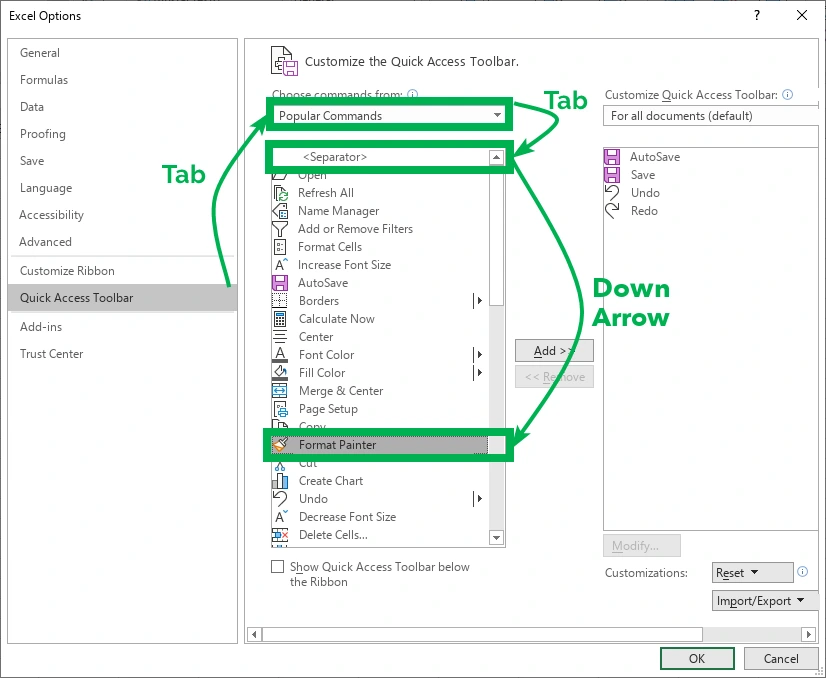
Step 2: Go to “Quick Access Toolbar.” In the Windows Excel Options window, you can scroll down to it with the arrow keys.
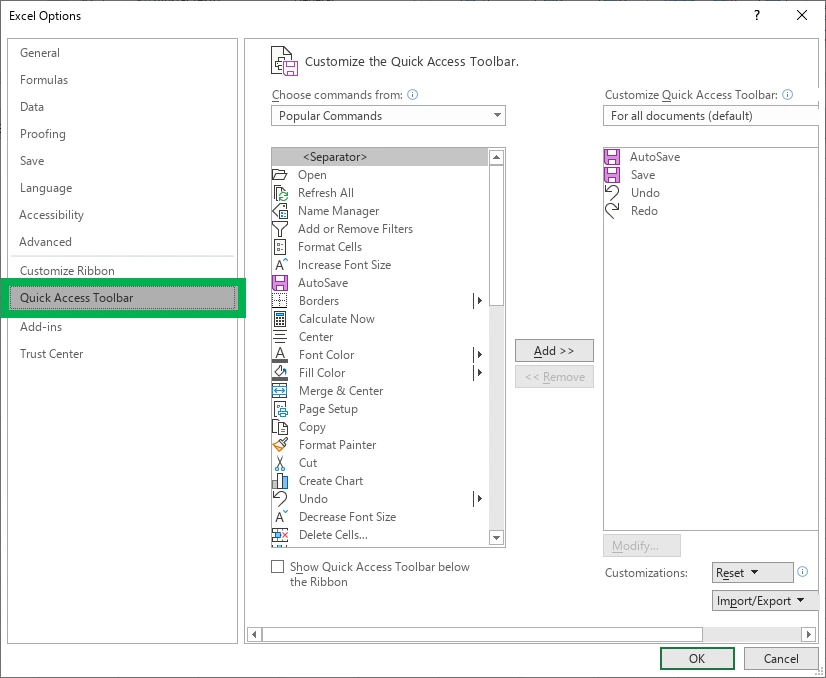
Step 3: In the box on the left, select the tool you want to add. In this example, we’ll add “Format Painter.” Move between the two boxes with Tab, then use the arrow keys once you’re inside a box.
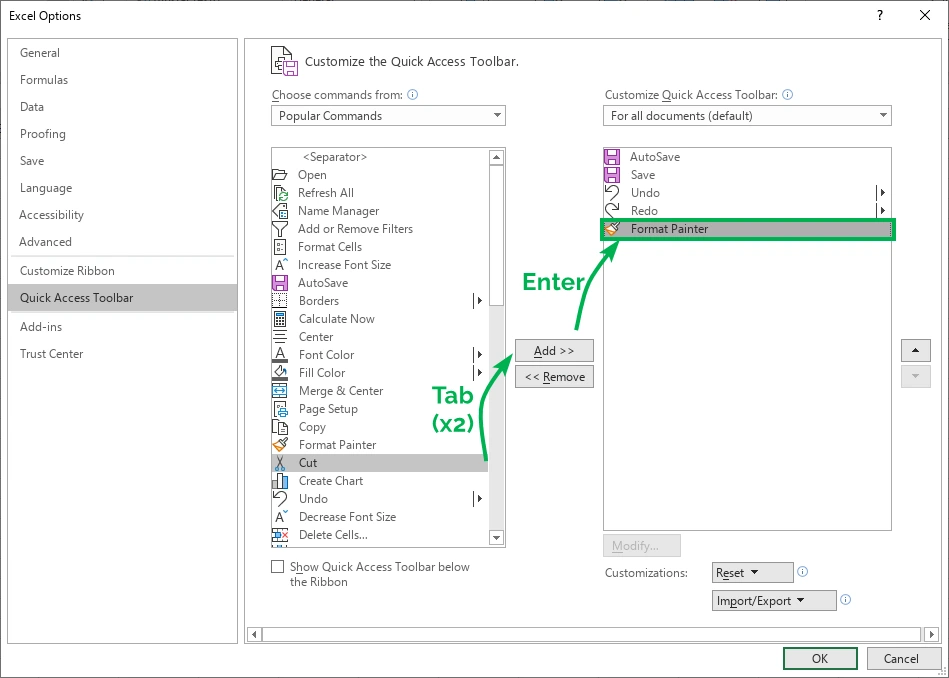
Step 4: Select “Add,” by pressing Tab twice and then Enter. You’ll see “Format Painter” appear in the box on the right.
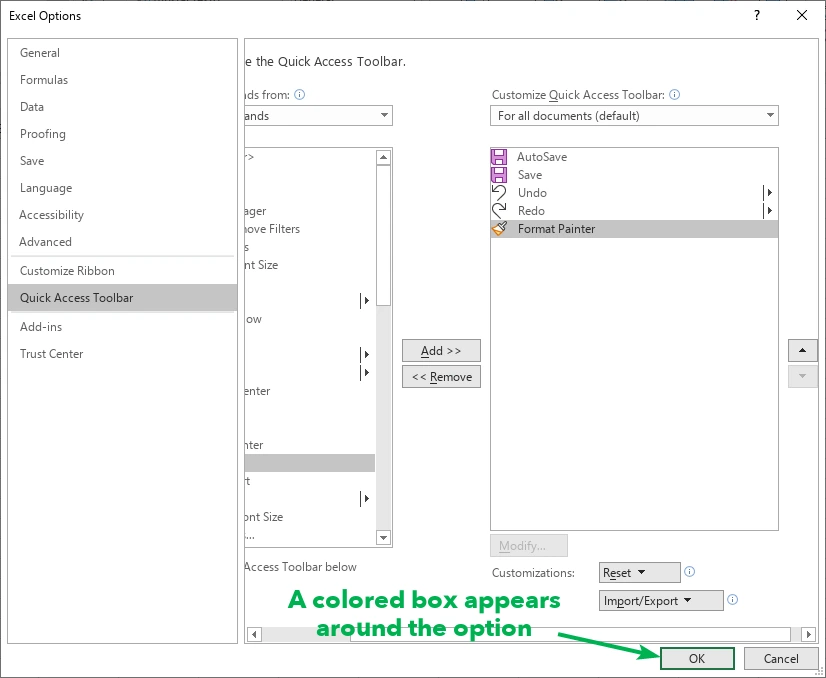
Step 5: Select “OK” (“Save” on a Mac). You can get there by pressing Tab until a colored box surrounds the button. Then press Enter (Return on a Mac).
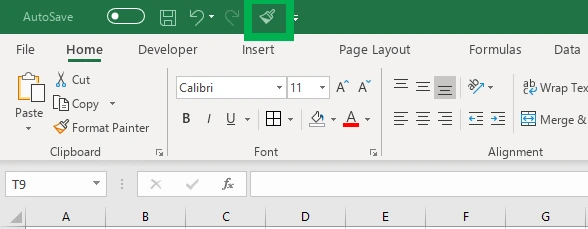
You’ll see the Format Painter icon added to the Quick Access Toolbar.
Done. You added a new item to your Quick Access Toolbar. It’s not a shortcut typed from the keyboard, but it saves you the same clicks either way.
Build the habit, one shortcut at a time
You don’t need to memorize every shortcut in this guide today. Start with copy, paste, save, and the few that fix the row and column mix-ups covered above, and add one or two a week from the full list. The keyboard pays off the moment you stop reaching for the mouse between every single step.
Take the next step and practice these shortcuts inside real exercises
Shortcuts stick when you use them while solving something real, not when you read them once and close the tab.
Still clicking through menus to get things done?
Shortcuts save minutes, but the habit only sticks with practice inside Excel itself. Ninja Excel’s online courses walk you through live exercises, with instructors watching your progress if your company is sponsoring the training.
You start with a level check, so you never repeat what you already know.
FAQ
Why does Excel for Mac use Command instead of Ctrl?
Command is the Mac’s main modifier key, the same role Ctrl plays on Windows. Most Office shortcuts simply swap one for the other, which is why Ctrl + C on Windows becomes ⌘ Command + C on a Mac. A handful of shortcuts, like inserting or deleting a row, use Control instead, so it’s worth checking rather than assuming every Ctrl becomes a Command.
Do Windows Excel shortcuts work on a Mac?
Many do, once you swap Ctrl for Command, but not all. Function keys are the usual catch: Save As is F12 on Windows, while on a Mac you’ll usually need fn + F12, or you can use ⌘ Command + Shift + S, which works on any keyboard. Inserting and deleting rows is another exception, since it uses Control instead of Command.
Why don’t my F1 through F12 keys work as shortcuts?
On most Mac keyboards, those keys are set by default to control things like volume, brightness or full-screen mode. To use them as function keys inside Excel, hold fn at the same time. You can also change this system-wide in System Settings, under Keyboard, if you use function keys often.
How do I edit a cell without reaching for the mouse?
Press fn + F2 to enter edit mode on the selected cell. If that doesn’t respond on your setup, try ⌃ Control + U, the alternate shortcut Excel for Mac has kept for the same action.
How do I insert or delete a row or column with the keyboard?
Select the row with Shift + Space or the column with ⌃ Control + Space. Then press ⌃ Control + Shift + "=" to insert, or ⌃ Control + "-" to delete. Both use Control, not Command.
Can I switch between two open workbooks without the mouse?
Yes. Press ⌘ Command + ` (the grave accent key, above Tab) to cycle through the open windows of the same app, including two Excel workbooks. ⌘ Command + Tab switches between different apps.
What’s the fastest way to add a tool to the Quick Access Toolbar?
Open Excel’s settings with ⌘ Command + ",", choose “Ribbon & Toolbar,” open the Quick Access Toolbar tab, select the command you want in the left list, and add it with the arrow button. The full walkthrough, with screenshots, is further up in this article.