
New · Excel Skills Assessment
An Excel skills assessment that shows where each person on your team should start
With the Excel Skills Assessment, each person on your team works through business scenarios in an Excel spreadsheet. You’ll see which level they should start from and which course fits them, before you invest in training. It’s free, and you set it up in your Admin Center.
+2.000 companies are increasing their productivity with us.















Excel training that starts
at each person's skill level
One course for the whole team rarely fits everyone.
With the assessment, each person works through business scenarios in an Excel spreadsheet. That way, you’ll know which level each participant starts from and which course they should begin with.
With the assessment you know:
- Which level each person should start from.
- Which course fits them: Basic, Intermediate or Advanced.
Everyone starts where they should
People who already know the basics don't repeat them. People who need them start there.
Everyone sees their strengths
When they finish, they see what they're good at and what to learn next. They start the course knowing where to begin.
Plan your 2027 training with data
You walk into annual planning knowing which level each person should start from and which course they need.
And when it’s time to buy, you pick the right course for each person instead of the same package for everyone.
How the assessment works
From your Admin Center to your cart, in four steps.
Step 1
Set it up in your Admin Center
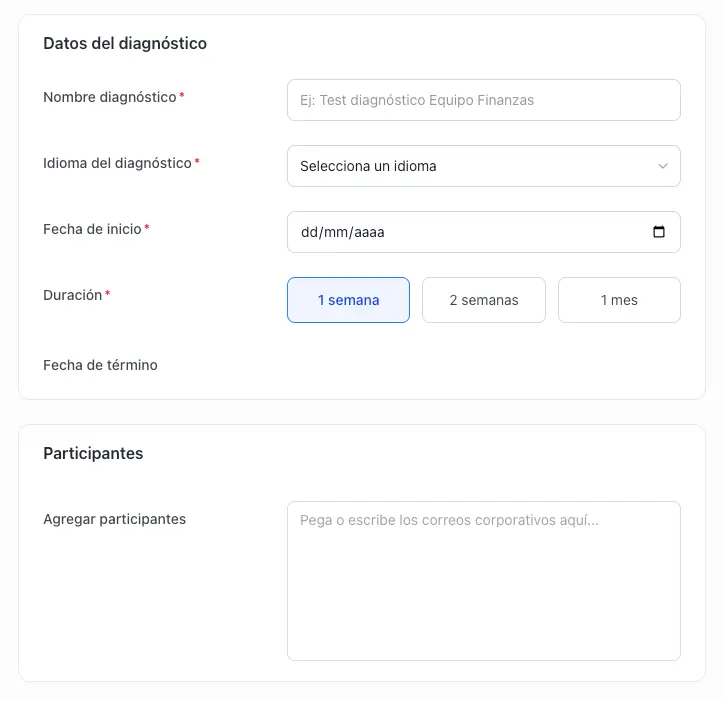
Give it a name and choose the language (English or Spanish), the start date and the length: one week, two weeks or one month. Then add your team’s emails. You can type them or paste them from a spreadsheet.
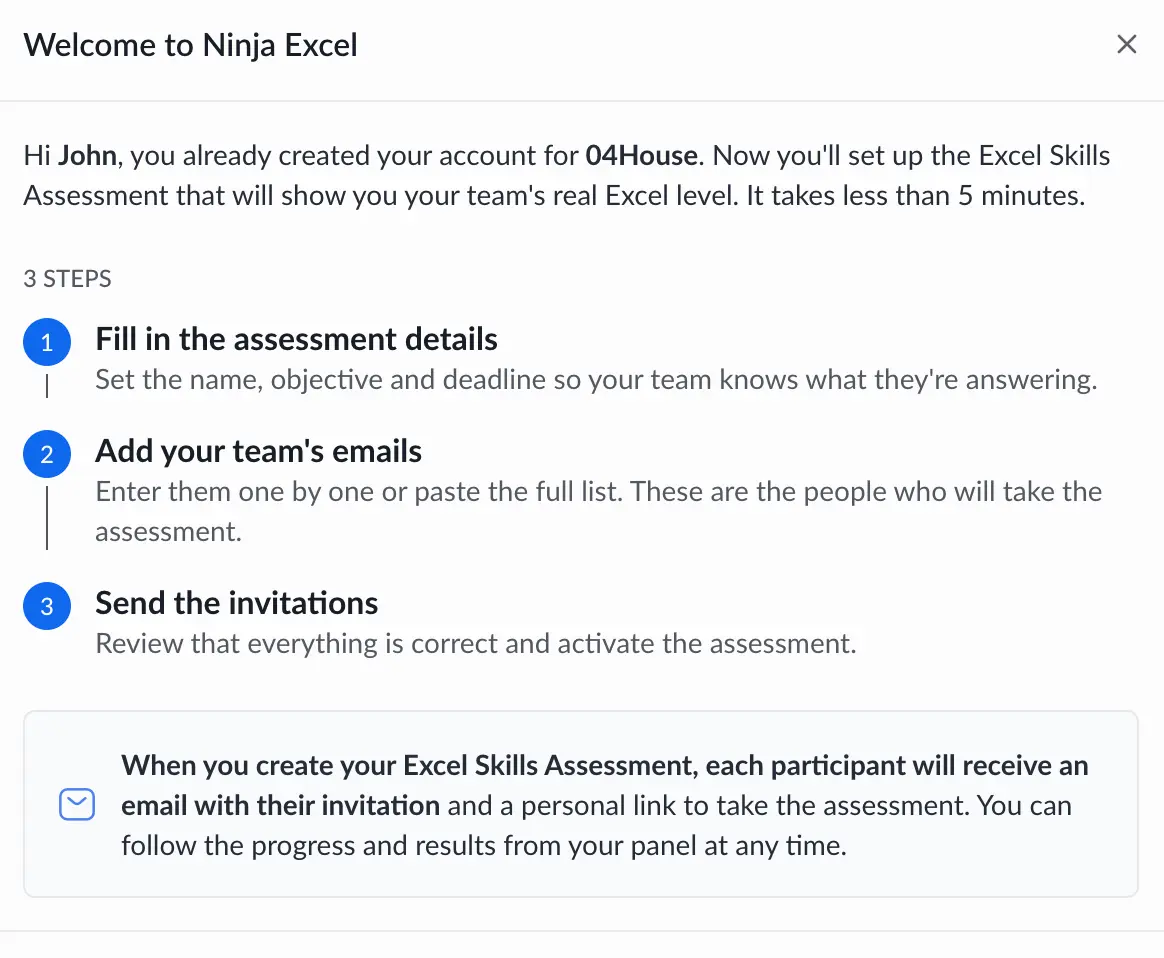
Don’t have an account yet? You’ll create one with your company details when you start, and go straight to the assessment form.
Step 2
Each person takes it when it suits them
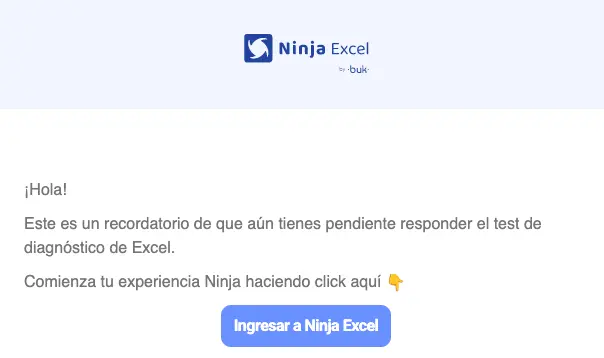
They get a link by email and complete it at their own pace before the deadline. It takes 30 to 45 minutes on average.
Anyone who hasn’t finished gets a reminder every two days. You don’t have to chase them.
Step 3
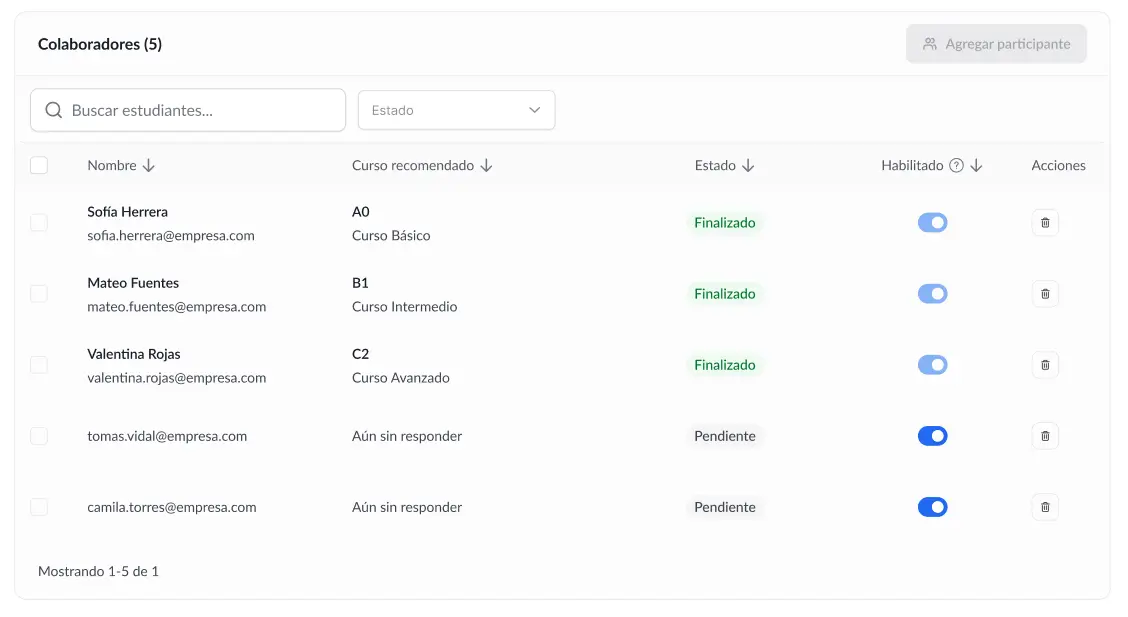
See results as people finish
For each person you’ll see:
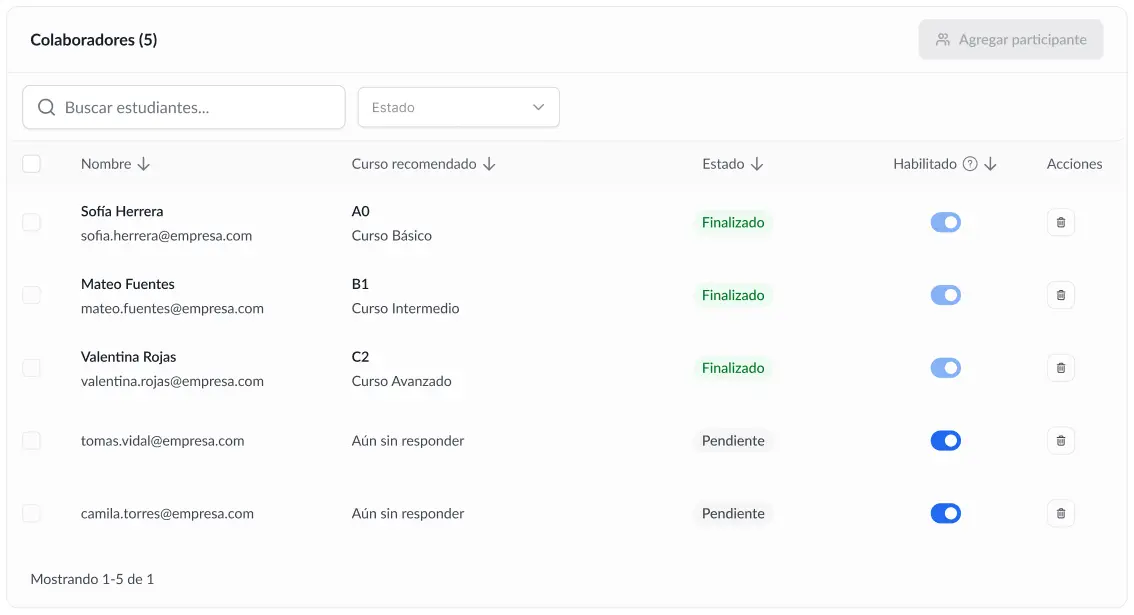
- Their starting level.
- The course we recommend.
Every Monday, Wednesday and Friday you get a progress email with each person’s status and suggested course. And you can download the full report in Excel.
Step 4
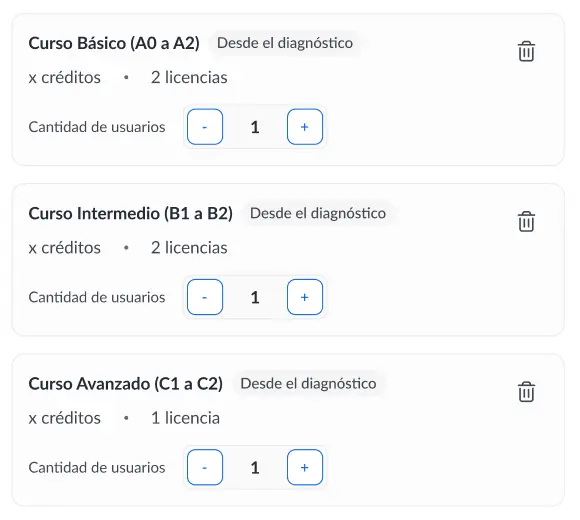
Add the courses to your cart
When the assessment closes, you add the recommended courses to your cart from the same dashboard.
Business scenarios, not theory questions
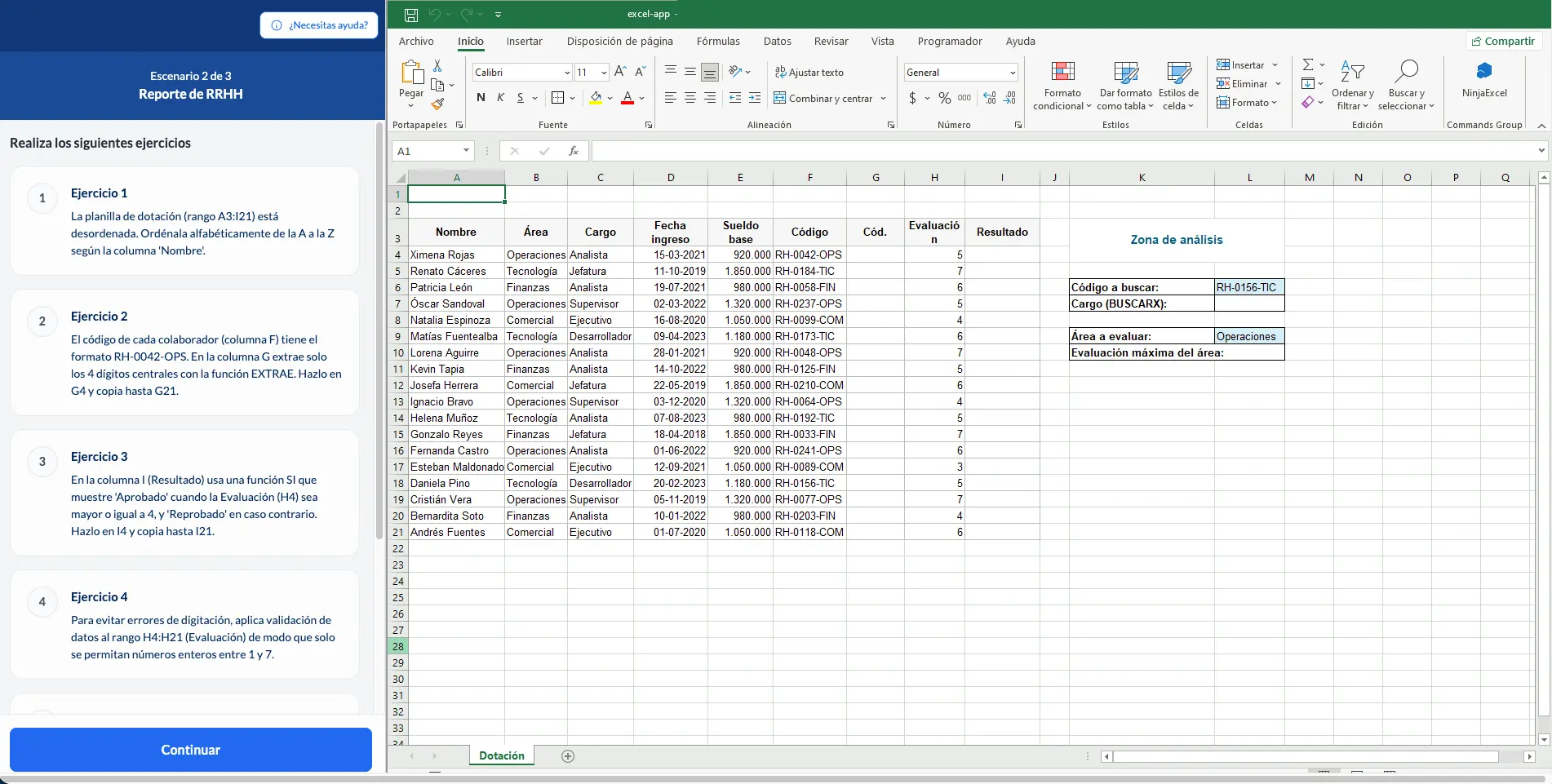
The assessment is hands-on. Each person works through three scenarios in an Excel spreadsheet inside the platform. Each one comes from a different business area:
Sales
Human Resources
Finance
Everyone takes the same assessment
Nobody has to say upfront what level they think they’re at. Everyone takes the same assessment, with exercises from A1 to C2 on the SECM, Ninja Excel’s certification model.
A starting level and a course
What each person solves sets the level they should start from. That’s where the course comes from: Basic, Intermediate or Advanced.
Your team tries Ninja Excel before you decide anything
The assessment runs inside the Ninja Excel platform. While they work through it, each person sees how learning works here: business scenarios and hands-on practice in Excel. And it’s free.
The assessment is a first look. The full course, with all its exercises, comes later.
For your team
They get to know the platform from the inside and work in it with scenarios that look like their day-to-day. When the course starts, they already know how it works.
For you
You decide on training with each person's level in front of you and a team that's already tried the Ninja Excel way of learning.
What you see and what each person sees
You, as the admin
- Each person's starting level, as soon as they finish.
- The course that fits them.
- A progress email three times a week.
- An Excel report with each person's recommendation.
Each person on your team
- Their strengths.
- What to learn next.
So they start the course knowing where to begin.
Start your 2027 training plan
at each person's level
Create the assessment in your Admin Center. It’s free, each person takes it at their own pace, and your team gets to know the platform along the way.
Frequently asked questions
about the Excel Skills Assessment
What training leads usually ask before creating their first one.
What is the Excel Skills Assessment?
It’s a hands-on assessment that measures each person’s Excel skills. You set it up in your Ninja Excel Admin Center. Each person works through business scenarios in a spreadsheet, and the result tells you which level they should start from and which course fits them.
How much does it cost?
Nothing, it’s free. You only pay for courses if you decide to buy them afterwards.
How long does it take each person?
30 to 45 minutes on average. They take it when it suits them, before the deadline you set: one week, two weeks or one month.
What kind of exercises does it have?
Three business scenarios, one in sales, one in human resources and one in finance (budget control), solved in an Excel spreadsheet inside the platform. Exercises go from A1 to C2 on the SECM. They’re not theory questions.
Does my team get to see the platform?
Yes. The assessment runs inside the Ninja Excel platform, so each person sees how learning works here before you decide on training. It’s a first look: the full course comes later.
What does the level mean?
It’s a starting point: the level each person should start from, which is where the recommended course comes from. It’s an approximation, not a full evaluation of everything they know.
What do I see as the admin?
Each person’s starting level and recommended course, as they finish. You also get a progress email every Monday, Wednesday and Friday, and you can download an Excel report with each person’s recommendation.
What does each person on my team see?
Their strengths and what to learn next.
What languages is it in?
English and Spanish. You choose when you create the assessment.
Do I need a Ninja Excel account?
You create the assessment in your Admin Center. If you don’t have an account yet, you’ll create one with your company details when you start, and go straight to the assessment form.