
Excel Training for Businesses
82% of employees rely on Excel daily, yet most never receive proper training. The result? Wasted hours, errors, and stalled growth.














What would you like to do today?
Choose the option that best matches your goals. Whether you are looking for team training or want to improve your own Excel skills, we will help you find the right path.
Real Results. Applicable Skills. More Productive Teams.
Boost your team’s productivity with practical and flexible training.
Designed for the real world, not for a classroom.
Learning by Doing
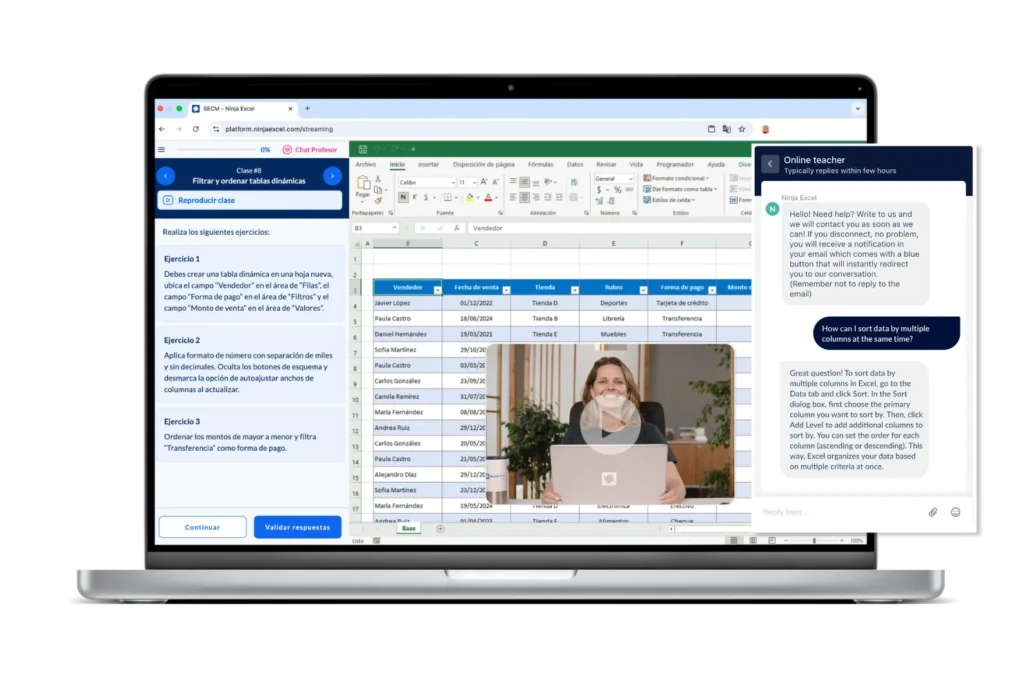
Most employees forget theory within days. That’s why Ninja Excel puts them inside Excel: 400+ real-world scenarios, instant feedback, and skills that actually stick.
Learn anytime, anywhere
Trainer-led courses pull employees away from their jobs. With Ninja Excel your teams train at their own pace - without slowing down operations.
Progress You Can Prove
HR leaders struggle to measure training ROI. Our admin reports give you clear visibility into every participant’s progress, skill gaps, and long-term retention.
Over 2,000 companies stopped wasting time on ineffective Excel training.
Join Coca-Cola, Walmart, Siemens, and more.






Methodologies Designed to Accelerate Learning and Business Impact
Each course is built around learning by doing. From the start, your team works inside real Excel spreadsheets, solving challenges that mirror their daily work.
Microlearning
Short, straight-to-the-point lessons. Employees progress at their own pace, staying focused and applying concepts to their daily tasks within minutes.
Practical Cases
Every exercise is based on real workplace scenarios. Training goes beyond theory, becoming tangible solutions for your company’s processes.
Expert Support
Live chat with Microsoft Office Specialists. Don’t allow employees to get stuck – let our experts guide them through the challenges.
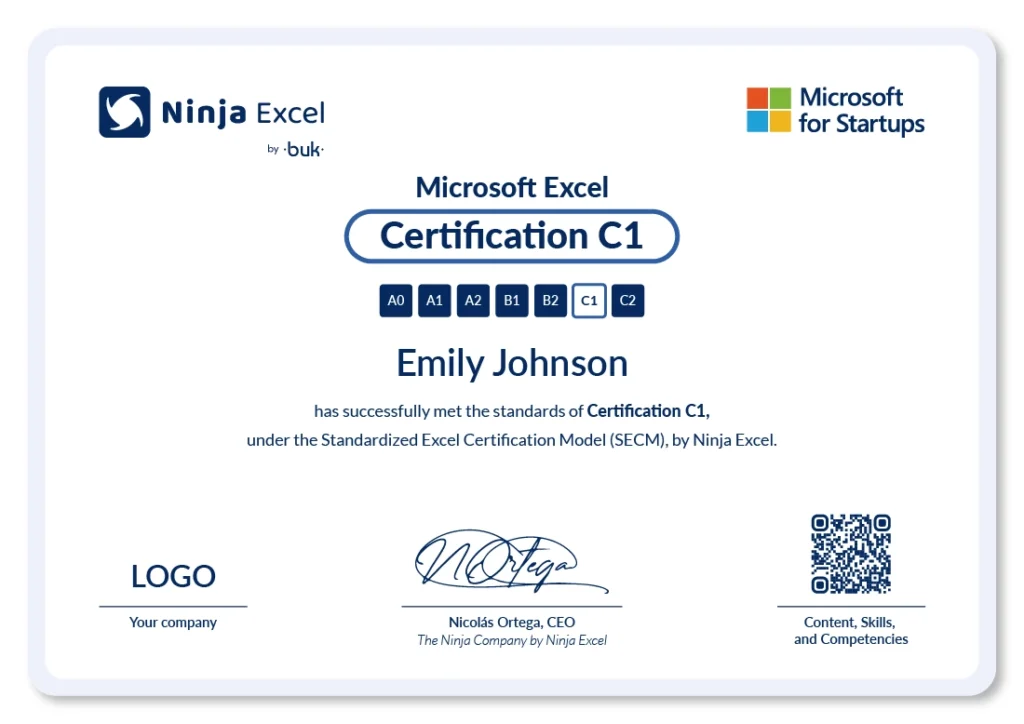
SECM
Standardized Excel Certification Model
Clear, measurable levels that allow you to validate skills, plan future training, and demonstrate business impact.
Admin Tool
Eliminate the operational burden of training and reclaim strategic control. Now, you can manage enrollments, budgets, and technical tracking for your team with 100% autonomy and in real-time.
Excel Courses by Level — From A0 to C2
Our programs are structured into seven certification levels that adapt to each person's knowledge.
From those who’ve never used Excel to professionals who design dashboards and automate tasks — every course combines applied exercises, personalized support, and an official certificate. You can begin at the appropriate level based on your diagnostic test results, or advance progressively through the full curriculum.
Ninja Excel Full
A0
A1
A2
B1
B2
C1
C2
- 15.6 hrs of video lessons
- 249 classes
A complete training track, from foundational skills to advanced Excel competencies. Includes all certifications from A0 to C2, empowering teams with a practical and measurable approach.
Basic
Excel Course
A0
A1
A2
B1
B2
C1
C2
- 5.7 hrs
- 105 classes
Train from scratch on navigation, formatting, basic functions, and charts. Ideal for teams with no prior experience who need to work efficiently with data.
Intermediate
Excel Course
A0
A1
A2
B1
B2
C1
C2
- 5.1 hrs
- 81 classes
Deepen your knowledge in functions, pivot tables, and data validation. Improve analysis quality without disrupting operations or overloading your teams.
Advanced
Excel Course
A0
A1
A2
B1
B2
C1
C2
- 4.8 hrs
- 63 classes
Automate processes using Macros, Solver, and modern functions. Designed for teams working with complex data and seeking measurable outcomes.
A0
Intro Level
- 63 min.
- 28 classes
- 5 units
- Final Exam
- Downloadable glossary and study materials for your lifetime use.
- 100% Learning by Doing.
- Certificate on completion.
Your team will understand the most basic navigation and use of Excel, such as the menus, the spreadsheet interface, the most important tricks and shortcuts when navigating, and the essential cell formats (fonts, colors, borders, etc.).
Units
- Introduction and Objectives
- Tabs
- Ribbon and Group
- Contextual Tabs
- Grid
- Name Box
- Sheets
- Formula Bar
- Status Bar
- Summary & Glossary 2
- Second Assesment
- Scroll Bars
- Zoom-in and Zoom-out
- Keyboard Navigation
- Selecting Cells with Mouse
- Select Cells with Keyboard
- Tab and Enter
- Summary & Glossary 3
- Third Assesment
- Insert/Delete Columns and Rows
- Column and Row Sizes
- Undo and Redo
- Quick Access Toolbar
- Freeze Panes
- Summary & Glossary 4
- Fourth Assesment
- Enter Data
- Edit Data
- Cell Fill (Fill Color)
- Cell Fill (Gridline Style)
- Save
- Font
- Borders
- Alignment
- Summary & Glossary 5
- Fifth Assessment
A1
Beginner
- 128 min.
- 36 classes
- 6 units
- Final Exam
- Downloadable glossary and study materials for your lifetime use.
- 100% Learning by Doing.
- Certificate on completion.
Your team will understand basic cell formats such as combining, styling and formatting cells (date, text, percentage, number, etc.). In addition, they will be able to sort data using filters, adding design and security to the spreadsheet. Finally, they will understand the use, logic, and syntax of the most basic Excel functions.
Units
- Center text across multiple cells
- Change text orientation
- Merge Cells
- Applying Cell Styles
- Format Numbers in Cells
- Format Text in cells
- Format Numbers as Percentages
- Format Numbers as Currency
- Create a Cell Style
- Summary & Glossary 1
- First Assesment
- Data Preparation
- One-Level Sort
- Multi-Level Sort
- Auto Fill
- Flash Fill
- Drop-down List
- Cells and Range Names
- Summary & Glossary 2
- Second Assesment
- Prepare Data to Filter
- Clear Filters
- Filter by specific words
- Text Filters
- Filter by specific dates
- Filter Multiple
- Columns
- Summary & Glossary 3
- Third Assesment
- Create and Apply Custom Views
- Page Layout
- Reference data in another workbook
- Summary & Glossary 4
- Fourth Assesment
- Protect Sheet
- Unlock Cells
- Hide Formulas
- Protect Workbook
- Summary & Glossary 5
- Fifth Assesment
- What is a Formula?
- Addition, Subtraction, Multiplication, and Division
- Calculation Order
- Cell References
- Copy and Paste Formulas
- Absolute References
- Mixed References
- Summary & Glossary 6
- Sixth Asessment
A2
Elementary
- 155 min.
- 41 classes
- 6 units
- Final Exam
- Downloadable glossary and study materials for your lifetime use.
- 100% Learning by Doing.
- Certificate on completion.
Your team will understand basic cell formats such as combining, styling and formatting cells (date, text, percentage, number, etc.). In addition, they will be able to sort data using filters, adding design and security to the spreadsheet. Finally, they will understand the use, logic, and syntax of the most basic Excel functions.
Units
- What is a Function?
- Create a Function
- Advantages
- Operations within functions
- Errors
- Summary & Glossary 1
- First Assessment
- SUM Function
- ROUND Function
- COUNT and COUNTA Function
- COUNTBLANK Function
- MAX and MIN Function
- Functions within Functions
- Summary & Glossary 2
- Second Assessment
- AVERAGE, MEDIAN and MODE.SNGL functions
- SUMPRODUCT Function
- LARGE and SMALL Functions
- RAND and RANDBETWEEN Functions
- More mathematical Functions
- Summary & Glossary 3
- Third Assessment
- If Function
- AND / OR Functions
- Nesting, IF, AND, OR Functions
- SUMIF Function
- COUNTIF Function
- COUNTIFS Function
- SUMIFS Function
- IFERROR Function
- IFS Function
- Summary & Glossary 4
- Fourth Assessment
- Create a Table
- Table Styles
- Sort and Filter
- Slicer
- Convert and Resize Table
- Table Style Options
- Summary & Glossary 5
- Fifth Assessment
- Chart Essentials
- Creation and elements of a chart
- Chart Formatting
- Bar Charts
- Line Charts
- Combo Charts
- Pie Charts
- Doughnut Charts
- Funnel Charts
- Sparklines
- Summary & Glossary 6
- Sixth Assessment
B1
Intermediate
- 161 min.
- 43 classes
- 6 units
- Final Exam
- Downloadable glossary and study materials for your lifetime use.
- 100% Learning by Doing.
- Certificate on completion.
Your team will be well versed in time, date, and text functions. They will also be able to outline and forecast data. Finally, they will be able to build Pivot Tables and Charts.
Units
- RIGHT and LEFT
- SEARCH – FIND
- MID
- REPLACE – SUBTITUTE
- CONCAT
- TEXTJOIN
- TEXTBEFORE-TEXTAFTER
- TRIM
- PROPPER-UPPER-LOWER
- LEN
- Summary & Glossary 1
- First Assessment
- Sum Time
- Covert Time Units
- TIME
- HOUR-MINUTE-SECOND
- NOW-TODAY-TODAY+N
- DATE-DAY-MONTH-YEAR
- EDATE-EOMONTH
- DATEDIF
- WORKDAY
- NETWORKDAYS
- WORKDAY.INTL
- NETWORKDAYS.INTL
- Summary & Glossary 2
- Second Assessment
- Group
- Auto Outline
- Subtotals
- Summary and Glossary 3
- Third Asssessment
- Show Scenarios
- Create Scenarios
- Goal Seek
- Create Forecast
- Data Table
- Summary & Glossary 4
- Fourth Assessment
- Pivot Table and its characteristics
- Create Pivot Tables, Drag and Sort fields
- Pivot Table Options
- Refresh Pivot Table
- Tables to design Pivot Tables
- Value Field Settings
- Filter and Sort Pivot Tables
- Design and Move Pivot Tables
- Manual and Automatic Groupings
- Protection and Pivot Tables
- Summary & Glossary 5
- Fifth Assessment
- Create Interactive Charts from Tables
- Create Pivot Chart
- Pivot Chart Tools
- Summary & Glossary 6
- Sixth Assessment
B2
Upper Intermediate
- 150 min.
- 38 classes
- 6 units
- Final Exam
- Downloadable glossary and study materials for your lifetime use.
- 100% Learning by Doing.
- Certificate on completion.
Your team will have knowledge of lookup functions such as VLOOKUP and advanced conditional functions. They will also be able to use other advanced data tools. Finally, they will be able to use custom Pivot Table tools.
Units
- Preset Rules
- Detect Duplicate Values
- Top and Botton 10 Rules
- Data Bars and Color Scales
- Icon Sets
- Manage Rules
- Clear Rules
- Rules with Formulas
- Summary & Glossary 1
- First Assessment
- Text to Columns
- Remove Duplicates
- Consolidate
- Summary & Glossary 2
- Second Assessment
- Data Validation
- Input Message
- Error Alert
- Whole Number
- Date
- Text Length
- List
- Dependent Drop-Down Lists
- Summary & Glossary 3
- Third Assessment
- TRANSPOSE
- VLOOKUP
- HLOOKUP
- COLUMN-ROW
- COLUMN-ROWS
- MATCH
- INDEX
- IF-VLOOKUP
- IFERROR-VLOOKUP
- INDEX-MATCH
- Summary & Glossary 4
- Fourth Assessment
- Trace Precedents
- Trace Dependents
- Show Formulas
- Evaluate Formula
- Error Checking
- Summary and Glossary 5
- Fifth Assessment
- Slicers in Pivot Tables
- Timeline
- Create Individual Reports
- Refresh and Group Data
- Summary & Glossary 6
- Sixth Assessment
C1
Advanced
- 163 min.
- 36 classes
- 6 units
- Final Exam
- Downloadable glossary and study materials for your lifetime use.
- 100% Learning by Doing.
- Certificate on completion.
Your team will have a deep understanding of pivot tables, filters, validations, and advanced lookup functions. In addition, they will be able to create and control custom forms.
Units
- Report Connection
- Custom Slicer Style
- Multiple Consolidation Ranges (Single Page Field)
- Multiple Consolidation Ranges (Custom Page Fields)
- Calculate Field
- Calculate Item
- List Formulas
- Summary & Glossary 1
- First Assessment
- CHOOSE
- INDIRECT
- OFFSET
- HSTACK-VSTACK
- TOROW-TOCOL
- WRAPCOLS-WRAPROWS
- CHOOSECOLS-CHOOSEROWS
- Summary & Glossary 2
- Second Assessment
- XLOOKUP
- SORT
- SORTBY
- UNIQUE
- FILTER
- VLOOKUP function to cross-reference data
- Nesting VLOOKUP and INDIRECT
- functions to search in different tables
- VLOOKUP function for multipl results
- Summary & Glossary 3
- Third Assessment
- Combo Box
- Check Box
- Spin Button
- List Box
- Option Button
- Charts with Form Controls
- Conditional Formatting with Form Controls
- Summary & Glossary 4
- Fourth Assessment
- Filter by using one criterion
- Filter by using multiple criteria
- Filter by using wildcard characters
- Obtain unique records
- Summary & Glossary 5
- Fifth Assessment
- Prevent Duplicate Data Records
- Avoid transcribing irregular spaces
- Dynamic ranges with the OFFSET function
- Summary & Glossary 6
- Sixth Assessment
C2
Expert
- 126 min.
- 27 classes
- 5 units
- Final Exam
- Downloadable glossary and study materials for your lifetime use.
- 100% Learning by Doing.
- Certificate on completion.
Your team will be able to easily handle advanced Pivot Tables, in addition to using Macros and Solver in their daily tasks, understanding their power and syntax.
Units
- Nesting FIND and MID Dynamic Data Extraction
- Nesting MID and Double-Nesting FIND for Dynamic Data Extraction
- Nesting FIND and LEFT for Dynamic
- Data Extraction
- TEXTSPLIT function
- Summary & Glossary 1
- First Assessment
- RANK.EQ
- FREQUENCY
- MAXIFS
- MINIFS
- AVERAGEIF
- AVERAGEIFS
- Summary & Glossary 2
- Second Assessment
- Show Values As: % of Grand Total
- Show Values As: % of Column Total
- Show Values As: % of Row Total
- Show Values As: % Of
- Difference from
- % Difference from
- Running Total in
- Summary & Glossary 3
- Third Assessment
- Fundamentals of Excel Macros
- PC Settings to work with Macros
- Record, Run, and Delete a Macro
- Copy a Macro to another workbook
- Create a Form with Macros
- Advanced Filters with Macros
- Summary & Glossary 4
- Fourth Assessment
- Enable the SOLVER Add-in
- Working with SOLVER
- Working whit Maximum Objetives in SOLVER
- Working with Minimum Objetives in SOLVER
- Summary & Glossary 5
- Fifth Assessment
Train Your Team with a Structured and Measurable Plan
With the Standardized Excel Certification Model, your teams follow a clear, validated learning path. They apply new skills directly to their work, driving measurable business results.
A0: First steps with Excel, navigation, and basic formulas.
A1 - A2: Essential functions and simple report building.
B1 - B2: Functional analysis, basic automation, multi-sheet workflows.
C1 - C2: Dashboards, data visualization, consolidation, and macros.
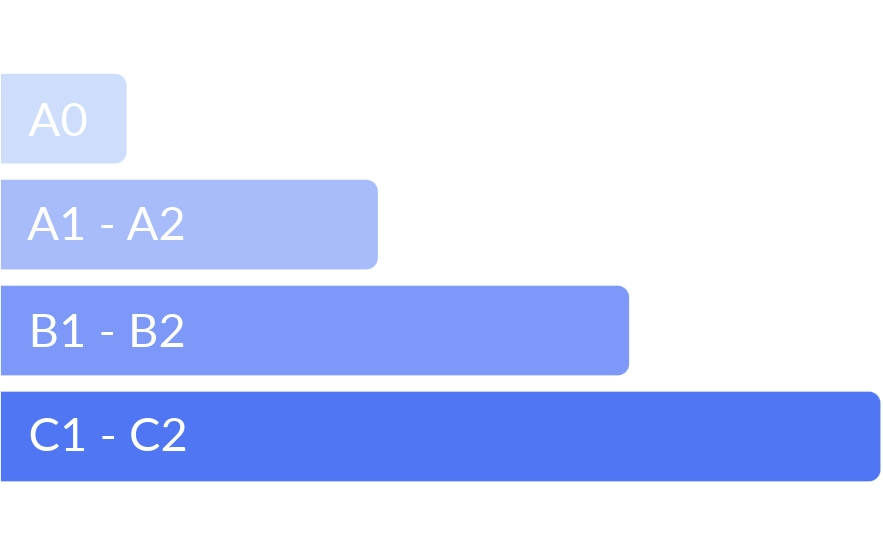
A clear path that takes every employee from theory to mastery, with certifications that prove measurable Excel skills.
What Companies Say After Transforming Their Training

FAQ
Explore some of the most frequently asked questions from our clients and users.
High-impact learning: Ninja Excel courses are interactive and effective, thanks to short duration video lessons and a unique integration with Microsoft Excel that provides real-time feedback on hundreds of practical exercises.
Ninja Excel courses are exclusively online because our platform is integrated directly into the Microsoft Excel Software. Practical application of the concepts learned is essential to the Learning by Doing methodology and to knowledge retention.
The Learning by Doing methodology is an active learning approach based on understanding and integrating concepts, knowledge, or skills through practical actions. Ninja Excel believes this is the best learning methodology, as it encourages teams to learn from their mistakes and draw conclusions by analyzing the results of their exercises.
All you need is an up-to-date web browser (Chrome, Firefox, or Edge) and an internet connection. There’s no need to install anything. If you plan to study from your work computer, your company may block access to some websites. We provide a list of the required sites so you can share it with your company’s IT administrator.
The demo is an opportunity to understand your training needs and, based on the discussion, provide a personalized proposal for your company. It is also a chance for you to explore the platform live and validate its use.
We accept bank transfers or credit card payments. If you need a different payment method, let us know, and we will explore the possibilities.
The duration of Ninja Excel training may vary depending on the course and the user’s learning pace. On average, it takes 4-6 hours of total study time to complete one level (A0, A1, A2, B1, B2, C1, C2). Dedicating 2-3 hours per week will result in a one-month training period per level.
Ninja Excel courses are asynchronous, as there is no set schedule for the course, and users do not need to wait for a connection with a teacher or instructor. The platform is available 24/7.
Ninja Excel provides certificates accrediting the user’s course completion, serving as a way to validate their knowledge. Upon finishing each course, users can download their certificate directly from the application and share it quickly and easily via LinkedIn.
The pricing depends on several variables such as the size of the group, duration of the courses and the specific courses included in your company’s bundle.
Request your demo, no credit card, no commitment. Just see how Ninja Excel works for your organization.
it only takes one minute to get started